Introduction
Heat determines performance and reliability more than most specs. Push a CPU too hot, and it will throttle, crash, or shut down. Hold it at high temperature for long stretches, and you may shorten its useful life. The phrase dangerous cpu temp causes concern, but many users misread normal turbo behavior as a fault. Modern chips ride temperature limits briefly by design to deliver peak speed.
This guide clarifies what actually counts as a dangerous cpu temp, how Intel and AMD report temperatures, and why laptops and desktops have different expectations. You will learn to measure temps correctly, interpret boosting and throttling, fix urgent issues fast, and build long term cooling that preserves performance and comfort.

What Counts as a Dangerous CPU Temp in 2026?
Danger depends on three factors: the CPU limit, the workload, and how long the chip stays near that limit. Most current Intel and AMD CPUs report a maximum junction temperature, often called TjMax, around the mid 90s to just over 100 C. Touching that ceiling for a moment does not equal damage. It triggers protection behavior that lowers clocks and voltage. The real risk appears when a system sits at the limit for sustained periods while performance collapses, errors appear, or the machine powers off.
Use practical ranges to guide action rather than fear:
– Idle and light tasks: 30 to 50 C on desktops, 40 to 60 C on laptops. Higher idle temps suggest background activity, weak airflow, or a very quiet fan curve.
– Gaming and mixed loads: 60 to 85 C on desktops, 70 to 95 C on laptops. Brief spikes higher can be normal in thin laptops or small form factor PCs.
– Heavy rendering, encoding, or AVX stress: 70 to 95 C on desktops, 80 to 100 C on laptops. Short bursts to the limit are expected. Sustained operation at the limit with throttling and loud fans is a warning sign.
Red flags that indicate dangerous territory:
– Sustained 95 to 100 C with frequent throttling and obvious frame rate or render speed loss.
– Rapid spikes that coincide with freezes or crashes.
– Temperatures trending upward over days or weeks under the same workload and ambient conditions.
This definition sets up the next topic: how each platform reports temperature, so you can read the right number and avoid false alarms.
Intel vs AMD Temperatures: TjMax, Tctl Tdie, and Hotspot Explained
You need to know what you are reading before you decide if a temperature is dangerous. Intel typically exposes per core and package temperatures along with a clear TjMax where throttling begins. Short peaks near 100 C during turbo can be within spec, provided they do not persist or tank performance.
AMD reports several values that can confuse newcomers:
– Tctl and Tdie: Control and die temperatures used for fan control and throttling logic.
– Hotspot or junction: The hottest point on the chip, usually 5 to 15 C above average die temperature.
– PPT, EDC, and TDC: Power and current limits that cap heat and performance.
On AMD, a higher hotspot than die is normal. A gap larger than about 20 C may indicate poor contact or uneven mounting pressure. On Intel, watch per core and package values. If throttling starts well below the documented limit, you may be hitting power or current constraints or a vendor profile that enforces lower thermal targets.
With the basics of reporting in place, it is easier to understand why laptop and desktop thresholds differ even when the silicon looks similar.
Laptops vs Desktops: Different Dangerous Thresholds
Laptops trade thermal capacity for portability. Thin and light models often run near their limits by design and may hit 90 to 100 C during short bursts. That alone does not signal danger. It shows aggressive boost behavior in a compact chassis. Gaming laptops with thicker cooling tend to sit a bit lower but still run warmer than desktops.
Desktops with mid tower cases and capable coolers should manage lower temps under similar loads. A desktop that plateaus near 95 C for long stretches likely has an issue with mounting, paste, fan curves, dust, or overall cooling capacity.
Use context to decide:
– Thin laptops: Brief 95 to 100 C bursts are common. Sustained 100 C with loud fans and throttling calls for tuning.
– Gaming laptops: 85 to 95 C is typical. Consider fan and power tuning if noise or throttling bothers you.
– Desktops: 60 to 85 C for gaming, 70 to 90 C for heavy workloads. Sustained operation near the limit deserves inspection.
Knowing the expected range for your system helps you measure and interpret temperatures with confidence.
How to Measure CPU Temperature Accurately
Accurate data drives smart decisions. Bad data results in wasted effort and money. Use trusted tools and a consistent method:
– Use reputable monitors: HWInfo, Core Temp, AMD Ryzen Master, Intel XTU, and motherboard utilities.
– Identify the right sensors: On AMD compare Tdie and Hotspot. On Intel check per core and package temps. Note any software offsets.
– Log instead of glancing: Enable logging during gaming or rendering to spot sustained plateaus, not just spikes.
– Record ambient temperature: Room temperature shifts CPU temperature almost one to one. Note it alongside your logs.
– Standardize tests: Run a short 5 to 10 minute stress test and a longer 20 to 30 minute session to capture steady state.
– Verify firmware: Ensure your BIOS or UEFI is stable and reporting correctly. Update only after recording a baseline.
With clean measurements in hand, you can interpret whether high numbers reflect healthy boosting or a dangerous cpu temp that triggers protective behavior.
Interpreting High Temps: Boosting, Throttling, and Automatic Shutdowns
Modern CPUs strive to use available headroom until they hit a limiter: temperature, power, or current. Brief peaks near the limit during turbo are normal and safe. Sustained high temps trigger thermal throttling, which reduces clocks to hold a target. If cooling cannot keep up, firmware will enforce heavier throttles or initiate a shutdown to prevent damage.
Read your logs with intent:
– Short spikes without performance loss mean normal boost.
– Sustained plateaus near the limit with falling clocks indicate thermal throttling and a cooling issue.
– Frequent power limit flags on Intel or PPT limits on AMD point to power constraints, not necessarily overheating.
– Sudden shutdowns or system errors under load suggest severe thermal or stability problems.
Once you can tell healthy heat from harmful heat, you can address the root causes in your case and environment.
Environmental and Case Factors that Push Temps into the Danger Zone
Cooling does not happen in a vacuum. The room and case decide how much heat your cooler can move.
– Ambient temperature: Every degree of room temperature adds roughly the same to CPU temperature.
– Dust and filters: Clogged filters and heatsinks choke airflow. Clean them regularly.
– Case layout: Mesh fronts and clear intake paths cool better than solid panels and cramped designs.
– Fan direction and balance: Aim for balanced or slightly positive pressure to stabilize airflow and cut dust.
– Cable management: Clear the path from front intakes to the CPU cooler.
– Component interactions: A hot GPU warms case air and can raise CPU temps. Adjust intake and exhaust to compensate.
Fixing environmental constraints often drops temperatures by 5 to 15 C. That is enough to move away from a dangerous cpu temp without major purchases. With your case sorted, you can spot direct warning signs more easily.
Clear Warning Signs Your CPU Temp Is Dangerous
Certain symptoms reveal when heat is harming stability or performance:
– Persistent 95 to 100 C on a desktop under moderate loads.
– Frequent thermal throttling with visible frame rate or render speed drops.
– Sudden shutdowns, freezes, or reboots under load.
– Fans at maximum speed while temperatures continue to climb.
– Hotspot readings far above die temperature, for example more than a 20 C gap.
– New instability after a rebuild, cooler swap, or case change.
If you see multiple signs, treat the situation as urgent and take immediate action before deeper troubleshooting.
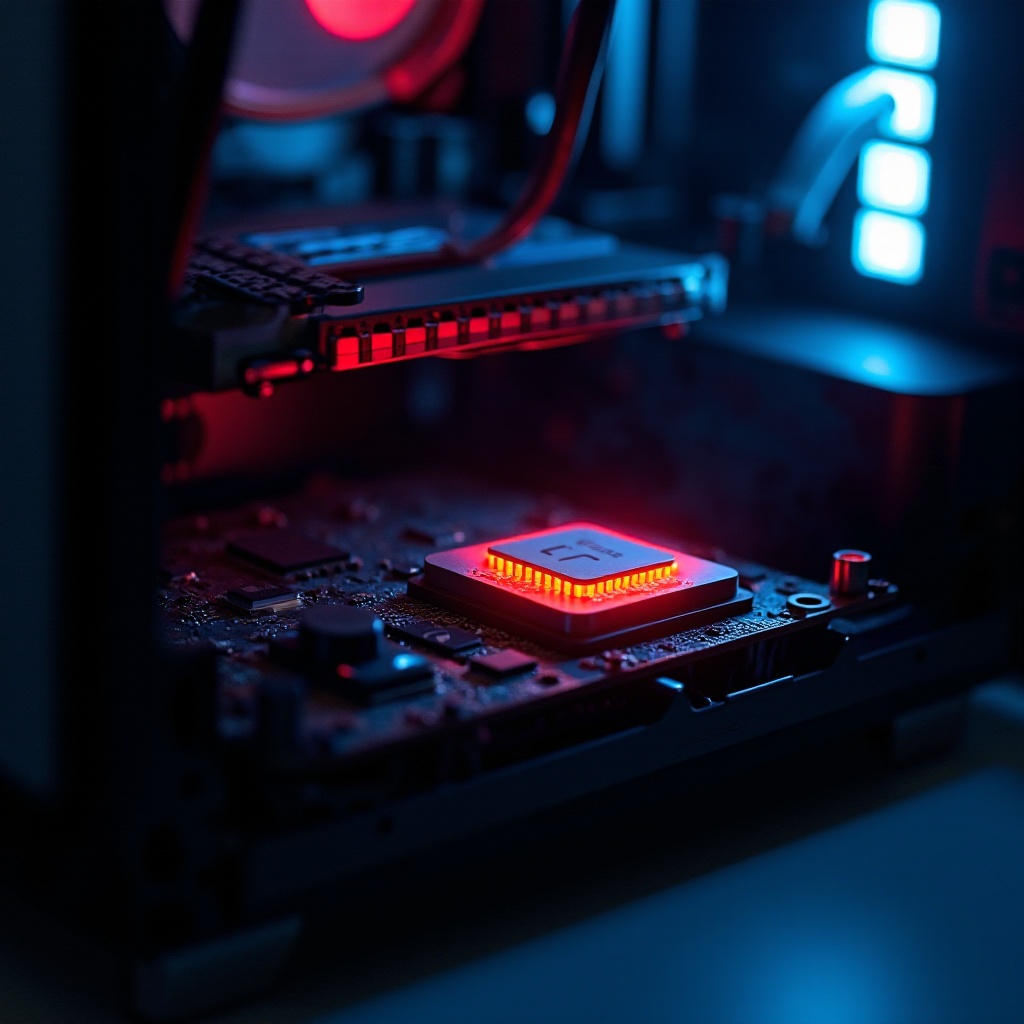
Immediate Actions if Temps Are Too High
Stabilize first. Then plan long term fixes.
1. Close heavy tasks: Stop background apps, updates, and scans that you do not need.
2. Improve airflow fast: Remove the front panel briefly and open the side panel to test airflow impact.
3. Clean dust: Clear filters and blow out heatsinks and fans with short bursts of compressed air.
4. Normalize fan and pump control: Use a performance profile and verify pump speed on AIOs.
5. Check cooler function: Ensure liquid coolers do not collect air at the pump. Listen for gurgling or rattling.
6. Secure cables: Reseat CPU fan and pump headers and ensure fans spin in the correct direction.
7. Reduce power: Enable eco or quiet modes and lower power limits in BIOS or vendor apps.
8. Monitor again: Log temps and compare to your baseline.
If these steps bring a meaningful drop, you can move to sustainable improvements that keep you clear of a dangerous cpu temp.
Sustainable Fixes to Reduce CPU Temps Long Term
Build a cooling foundation that holds up across seasons and workloads.
– Optimize case airflow: Use two to three front intakes and one to two rear or top exhaust fans. Favor quality 120 or 140 mm models with solid static pressure for intakes.
– Tune fan curves: Add hysteresis to prevent rapid ramping. Keep enough airflow at heavy loads without constant noise.
– Remount the cooler: Align properly, use correct standoffs, and tighten in a cross pattern. A clean mount can drop several degrees.
– Replace thermal paste: Apply a quality paste sparingly. Replace old or dried compound.
– Improve component placement: Avoid recirculating GPU heat into CPU intakes. Consider vertical GPU mounts or reposition radiators if the case allows.
– Manage cables: Keep front to cooler pathways open.
– Consider case upgrades: Mesh front panels and larger cases outperform glass front or cramped layouts.
– Set a maintenance plan: Clean filters quarterly and recheck temps when seasons change.
These steps create stable airflow and cooler operation, which reduces noise and preserves performance.
Cooler and Thermal Paste Choices That Matter
Cooling hardware determines how close your system runs to its thermal limits under load.
– Air coolers: Dual tower designs with two fans offer strong, quiet performance. Check RAM clearance and orient airflow toward the rear exhaust.
– AIO liquid coolers: 240 to 360 mm radiators handle higher heat if the case supports good placement. Do not mount the pump as the highest point. Keep tubes below the top of the radiator to prevent air from settling in the pump.
– Custom loops: Offer the best thermals and flexibility, at higher cost and maintenance complexity.
– Thermal paste: Quality pastes differ by a few degrees at most. Replace every 1 to 3 years depending on heat and usage. Liquid metal can perform well but carries electrical and corrosion risks and often voids warranties.
Choose hardware that fits your CPU power draw and case airflow rather than chasing specs that your chassis cannot support.
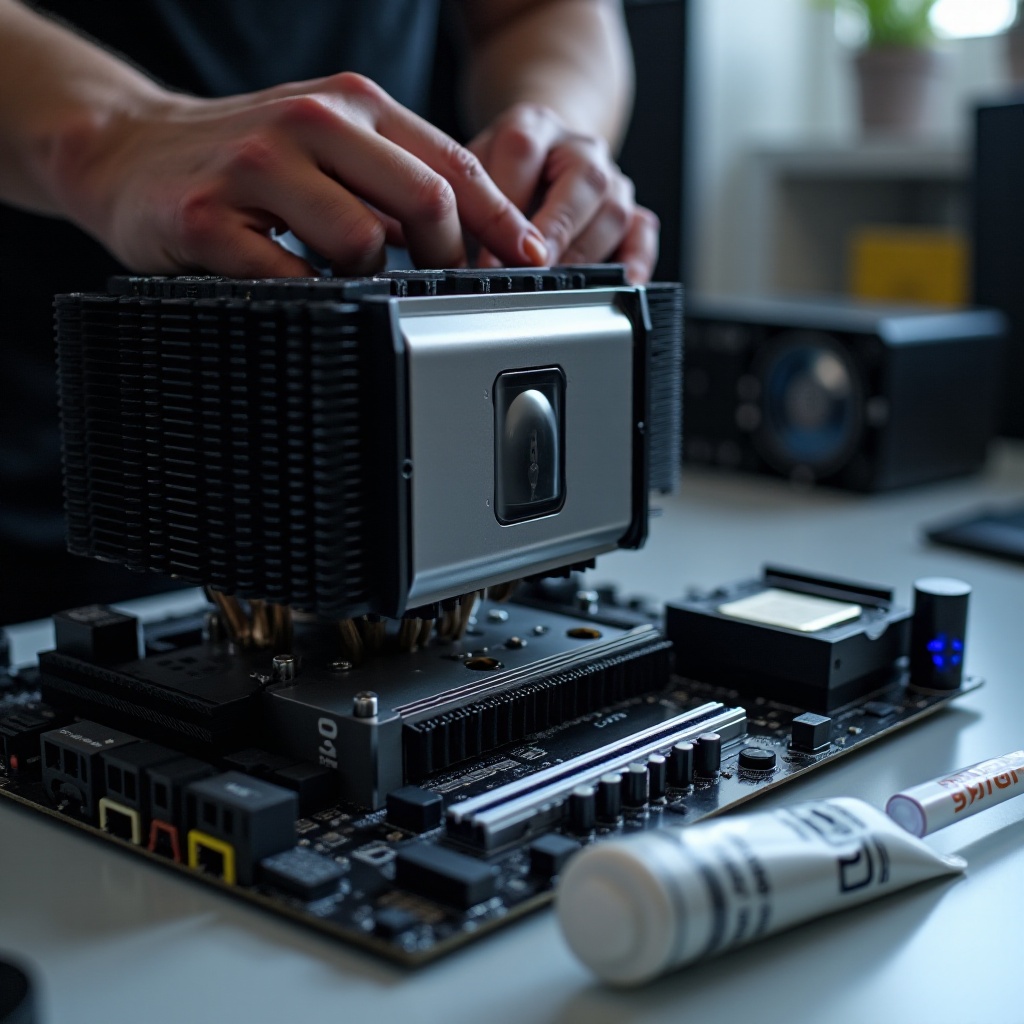
Power and Voltage Tweaks: Limits, Undervolting, and Curve Optimizer
Power tuning can cut temperatures by double digits without hurting real world speed.
– Intel: Set PL1, PL2, and Tau to levels your cooler can handle. A modest undervolt via BIOS or Intel XTU can reduce heat by 5 to 15 C if stable.
– AMD: Use Eco Mode or lower PPT to curb heat. Apply Curve Optimizer per core for better efficiency. Many chips accept negative values on several cores, but test thoroughly.
– GPU interaction: In games, capping GPU power reduces case heat and lowers CPU temperature indirectly.
– Stability first: Stress test with Cinebench, OCCT, your favorite games, and daily apps. Watch logs for errors and temperature behavior.
Responsible power limits keep the CPU from smashing into TjMax during long renders or compiles, reducing the chance of a dangerous cpu temp.
Do Not Forget VRM, Memory, and Motherboard Temps
The CPU is not the only heat source. VRMs, memory, and NVMe drives can push case temperature up and harm stability.
– VRMs: Overheated VRMs can throttle or destabilize the system. Ensure airflow over the socket area, especially if you replaced a top down air cooler with an AIO.
– Memory: High speed memory and the memory controller add heat. Validate stability when enabling XMP or EXPO.
– SSDs: Fast NVMe drives can throttle when hot, reducing performance and warming the case.
If you use an AIO, consider adding a top or rear fan aimed across the VRM heatsinks. Balance intake and exhaust so all components run within spec.
Is 90 C or 95 to 100 C a Dangerous CPU Temp? Real World Answers
Context is everything. A 90 C reading during a burst on a thin laptop is normal and often expected. The system targets that ceiling, delivers quick performance, and backs off. On a desktop with a decent tower cooler, a steady 90 C during a long render suggests a mounting, airflow, or power tuning opportunity. It is not instant danger, but it deserves attention.
Heat becomes dangerous when you see one or more of the following:
– Sustained operation at the limit with repeated throttling and obvious performance loss.
– Temperatures trending upward over time at the same workload and ambient.
– Hotspot gaps greater than about 20 C, hinting at poor contact.
– Instability such as errors, crashes, or shutdowns under load.
If your temps sit in the high 80s to low 90s without throttling or instability and performance remains constant, you are probably safe. Build margin by improving airflow, mounting, and power settings so the system does not hover at the limit.
Validation Checklist: Diagnose, Fix, Verify, Maintain
Close the loop with a simple, repeatable process.
1. Establish a baseline: Log temps, clocks, and ambient in your real workloads.
2. Change one thing at a time: Clean, remount, adjust curves, or tune power limits.
3. Retest: Use the same workloads and similar ambient for fair comparisons.
4. Check stability: Mix stress tests and games. Watch for errors and shutdowns.
5. Optimize noise: After temps settle, refine fan curves to balance cooling and acoustics.
6. Schedule maintenance: Clean quarterly, revisit paste yearly, and recheck power settings after firmware or driver updates.
This cycle locks in gains, prevents backsliding, and keeps your system far from a dangerous cpu temp.
Conclusion
You do not need to fear a brief high number on a monitoring graph. You do need to understand what it means. Modern CPUs protect themselves, but they rely on your case airflow, cooler mount, and power tuning. A dangerous cpu temp shows up as sustained operation at the ceiling, repeated throttling, and instability, not a momentary spike.
Measure temperatures correctly, read the signs, and fix the easy items first. Then build a cooling plan that fits your case, CPU, and ambient conditions. Validate each change with logs so you know what worked. With a clear process and steady maintenance, you will keep temps in check, cut noise, and protect performance and longevity.
Frequently Asked Questions
What temperature should my CPU be while gaming?
Most desktops sit between 60 and 85 C in games, depending on case airflow and GPU heat. Laptops often run 70 to 95 C. Brief spikes above these ranges are fine if performance holds steady.
Is brief spiking to 100 C safe on modern CPUs?
Yes. Short spikes near the thermal limit during turbo are expected and within spec. Danger appears when the CPU stays at the limit with throttling, errors, or shutdowns. Improve cooling if those signs show up.
How often should I replace thermal paste?
Plan to replace paste every 1 to 3 years. Replace sooner if temps creep up, the PC moves often, or you run heavy loads daily. Liquid metal demands expert care and can void warranties.