
Introduction
Choosing the best tablet for working starts with your workflow, not just a spec sheet. Writers care about a steady keyboard and clear screen. Designers want low‑latency pen input and color accuracy. Sales reps need great cameras and battery life for long days and video calls. Students and managers want light bags and fast access to documents, chats, and calendars. Some users need full desktop apps, while others can live in web apps and cloud tools. This guide helps you pick a tablet that fits real work, not just benchmarks. You will learn which specs matter, which ecosystems fit different jobs, and which accessories and setup steps turn a slab of glass into a serious workstation.
To speed things up, start with quick recommendations and then dive deeper into testing methods and buying criteria to validate your choice.
At a Glance: Quick Recommendations by Worker Type
If you need a fast answer, start here and confirm details later.
– Most people: iPad Pro with an M‑series chip plus a trackpad keyboard case.
– Google‑centric users: Samsung Galaxy Tab S series with the included S Pen and DeX desktop mode.
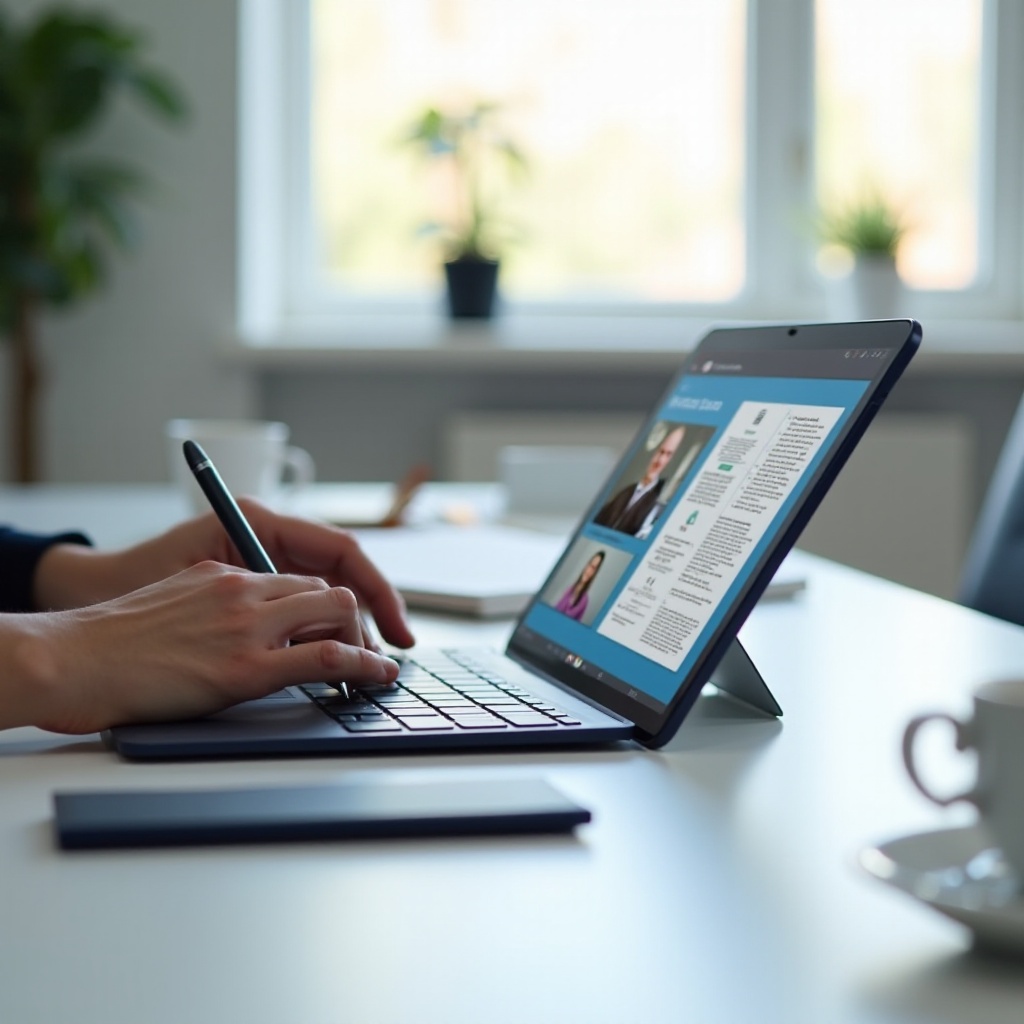
– Windows power users: Microsoft Surface Pro with a type cover for full desktop apps.
– Creatives and note‑takers: iPad Pro or Galaxy Tab S for class‑leading pen latency and apps.
– Travelers: a light 11‑inch class tablet with a sturdy case and an optional 5G model.
– Tight budgets: baseline iPad or Galaxy Tab A‑series, paired with a Bluetooth keyboard and stand.
These picks give you a starting point. Next, see how we test and evaluate work tablets so you can trust the process behind each recommendation.
How We Test and Pick Work Tablets
We build a full workday on each device and stress it. The test load includes email and calendar, Slack or Teams, 25 to 50 browser tabs, live docs in Google Workspace or Microsoft 365, and two hours of video meetings. We add creative tasks like photo edits, vector work, or note‑taking to gauge pen latency and palm rejection. We assess keyboards for key travel and layout, and trackpads for precision and palm rejection. We log battery life from morning charge to end‑of‑day, including standby drain and call time. We test external displays with USB‑C hubs, check file transfers to portable SSDs, and confirm that printers, scanners, and webcams behave. We measure Wi‑Fi 6E or Wi‑Fi 7 throughput, evaluate 5G or eSIM stability, and note how quickly radios reconnect after sleep. We review update policies, security features, and management options for BYOD or enterprise enrollment. Finally, we compare total cost of ownership by adding required accessories and support plans.
With that lens in place, you can focus on the traits that truly affect day‑to‑day work. The next section breaks down what to look for before you pick a platform or model.
What to Look For in a Work Tablet
Specs should translate to smoother days and fewer delays. Start with performance and memory for multitasking, then consider display size and brightness for long sessions. Battery and charging speed affect travel and time in meetings. Keyboards, trackpads, and pens shape how fast you input and edit. Ports, hubs, and wireless tech decide how well you dock and connect. Software updates and security protect your work. Finally, warranties and service keep you moving when accidents happen. Set your priorities against your typical day and your company tools.
Performance and RAM for Real Multitasking
Choose a fast chip and at least 8 GB of RAM if you keep many tabs and apps open. Heavy spreadsheets, browser‑based dashboards, and creative tasks benefit from more memory. If you want headroom for years, pick higher tiers for RAM and storage.
Display Size, Brightness, and Eye Comfort
The 11 to 13‑inch range balances portability and workspace. Look for 500 nits or more for bright rooms, anti‑reflective coatings for glare, and high refresh rates to reduce eye strain. Color accuracy matters for design work and client presentations.
Battery Life, Charging Speed, and Efficiency
Aim for 8 to 10 hours of mixed use with multiple calls. Fast charging at 20 to 45 W or higher helps you recover during breaks. Efficient chips reduce heat and maintain battery life during video meetings and long flights.
Keyboards, Trackpads, and Stylus Support
A sturdy keyboard cover with decent key travel and a reliable trackpad yields fewer typos and smoother edits. If you annotate or draw, choose a first‑party pen with tilt and pressure and the lowest possible latency.
Ports, Hubs, and Wireless Connectivity
USB‑C with video output simplifies docking. A reliable hub with HDMI, power delivery, and USB‑A ports extends your desk setup. Wi‑Fi 6E or Wi‑Fi 7 improves speed and stability. 5G or eSIM helps when tethering is unreliable.
Software Updates, Security, and Enterprise Tools
Long OS support, fast patches, and biometric sign‑in protect your data. Look for encrypted storage, passkey support, and optional MDM enrollment. Remote lock and wipe features save headaches if you lose your device.
Price, Warranties, and Total Cost of Ownership
Budget for the keyboard, pen, hub, case, and accidental damage coverage. A slightly pricier device with better accessories and support can cost less over time than a cheap tablet with flimsy add‑ons.
With your criteria set, the next sections highlight top picks for different users, starting with a best overall choice and then platform‑specific options.
Best Overall Tablet for Working
For most people, an iPad Pro with an M‑series chip plus a quality keyboard case delivers unmatched balance. It handles heavy web apps, office documents, and creative tasks without slowdowns. The display is bright, color accurate, and easy on the eyes during long sessions. Cameras and microphones are strong for video calls, and speakers make presentations and training videos easy to hear. iPadOS multitasking and external display support cover most day‑to‑day needs. Add a USB‑C hub and it docks like a thin laptop. The app ecosystem is deep, security is strong, and updates arrive for years.
If you like this balance, keep reading for platform breakdowns that help you choose the best tablet for working within Apple, Android, or Windows ecosystems.
Best iPad for Working
If you prefer Apple, two models stand out. iPad Pro is the premium pick for power users, designers, and anyone who wants the best screen and pen response. It flies through big spreadsheets, advanced note‑taking, photo edits, and multiple windows. iPad Air offers most of the speed at a lower price, and it supports excellent keyboard cases and pens. Both models benefit from a huge library of productivity and creative apps, secure biometric login, and long software support. With cloud storage, your files sync across devices and remain accessible offline.
If iPad strengths align with your tools, Android may still tempt you with flexible desktop modes. The next section explains why some professionals prefer Samsung tablets.
Best Android Tablet for Working
Android shines on high‑end Samsung Galaxy Tab S models. These tablets pair fast processors with vibrant OLED screens and include the S Pen with low latency. Samsung DeX desktop mode adds a taskbar, resizable windows, and keyboard shortcuts, which feels familiar to laptop users. You can run office suites, video calls, and collaboration apps smoothly while docking to a larger monitor. The Tab S FE line brings similar features at lower cost, which helps budget‑minded teams. Android also integrates well with Google services and supports robust sharing and automation tools.
If you rely on niche software, however, you might need full desktop apps. That is where Windows tablets hold a clear advantage.
Best Windows Tablet for Working
When you need traditional desktop programs, Surface Pro remains the most balanced Windows tablet. It runs the same software as your laptop, including advanced Excel features, Adobe apps, IDEs, and specialized business tools. The type cover offers comfortable typing on a desk, and the kickstand makes long sessions more ergonomic. Docking is simple: a single USB‑C cable to a hub can power dual displays, Ethernet, storage, and peripherals. Security and device management integrate with standard corporate tools, which eases IT approval.
If creative pen work drives your day instead of desktop apps, the next section focuses on stylus performance and display quality.
Best for Creatives and Note‑Takers
Creatives and heavy note‑takers need accuracy, speed, and comfort. iPad Pro stands out for low pen latency and smooth palm rejection, which makes handwriting and sketching feel natural. Pro‑grade drawing apps, page layout tools, and note apps thrive on this platform. Samsung Galaxy Tab S devices compete closely with excellent S Pen hardware and a flexible DeX mode that suits hybrid workflows. For PDF annotation and research, both ecosystems handle split view and quick markup well. Add a matte screen protector for paper‑like friction and reduce glare under bright lights. Select larger storage if you handle high‑resolution assets, and enable cloud backup so you never lose a sketch or manuscript.
If you split time between offices, clients, and flights, size and weight matter just as much as pen response. That leads directly to compact travel picks.
Best Compact Tablet for Commuters and Travel
A lighter tablet reduces fatigue and stress on commutes. Around 10 to 11 inches is the sweet spot for balancing readability and portability. Keep weight under 500 grams when possible, and choose bright screens that stay legible in sunlight. Consider a 5G or eSIM option for connectivity where Wi‑Fi is scarce. Choose a rigid but slim case that doubles as a stand on cramped tray tables. Detachable keyboards let you type when needed and stow them when you stand or move. Both iPad and Android options in this size range handle documents, chats, and slides comfortably.
If cost is your main constraint, prioritize core performance and support rather than premium niceties. The next section covers value picks.

Best Budget Tablet for Working
Value buyers should focus on a strong base device and only essential accessories. On Apple, the baseline iPad delivers years of updates and smooth performance for office work, calls, and web apps. On Android, the Galaxy Tab A‑series offers good screens and battery life at low cost. Add a reliable Bluetooth keyboard with a stand and a protective case. Accept the limits: budget tablets handle everyday tasks well but struggle with heavy creative workloads or too many tabs. Use cloud storage to keep local space free and speed up backups. Watch for seasonal bundles that include keyboards or pens, and consider certified refurbished models with warranties to stretch your budget.
Whether you buy premium or budget, platform differences can make or break your workflow. That is why the next section compares iPadOS, Android, and Windows.
Software and Ecosystems: iPadOS vs Android vs Windows
Your operating system shapes multitasking, file handling, and external display behavior. iPadOS focuses on responsiveness, battery life, and a refined app experience, with Stage Manager and extended display support to help power users. Android stands out for flexibility and, on Samsung devices, DeX desktop mode that adds a more familiar multitasking layout. Windows brings full desktop apps, broad peripheral support, and the least friction for legacy or specialized workflows. Consider your team tools, IT policies, and collaboration needs. If your company standardizes on a platform, matching it can simplify support and security.
Multitasking, Windowing, and Desktop Modes
iPadOS supports multiple windows and Stage Manager. Android with DeX provides a desktop‑style taskbar and resizable windows. Windows offers traditional multitasking with full window controls.
External Displays and Peripherals
All three platforms drive external monitors over USB‑C. Windows and DeX behave most like a laptop on a big screen. iPadOS supports extended displays with windowed apps and robust keyboard and pointer support.
App Ecosystems for Office, Creative, and Dev Work
Office suites and video call apps are strong across platforms. iPad and Galaxy Tab excel in pen‑first creative apps. Windows leads for niche tools, local development, and legacy software that has no tablet‑native equivalent.
File Management, Storage, and Cloud Sync
Windows offers a familiar desktop file system. iPadOS and Android handle external drives and integrate tightly with cloud storage providers. Choose a platform that matches your team workflow for versioning and sharing.
Security, Updates, and IT Management (BYOD or MDM)
All platforms support encryption, biometric unlock, passkeys, and remote wipe. iPadOS typically provides long update windows. Android and Windows offer deep policy controls for enterprise fleets and flexible BYOD setups.
With your platform settled, the right accessories can transform your tablet into a comfortable desk setup or a mobile studio. The next section shows the must‑haves.
Must‑Have Accessories for Work Productivity
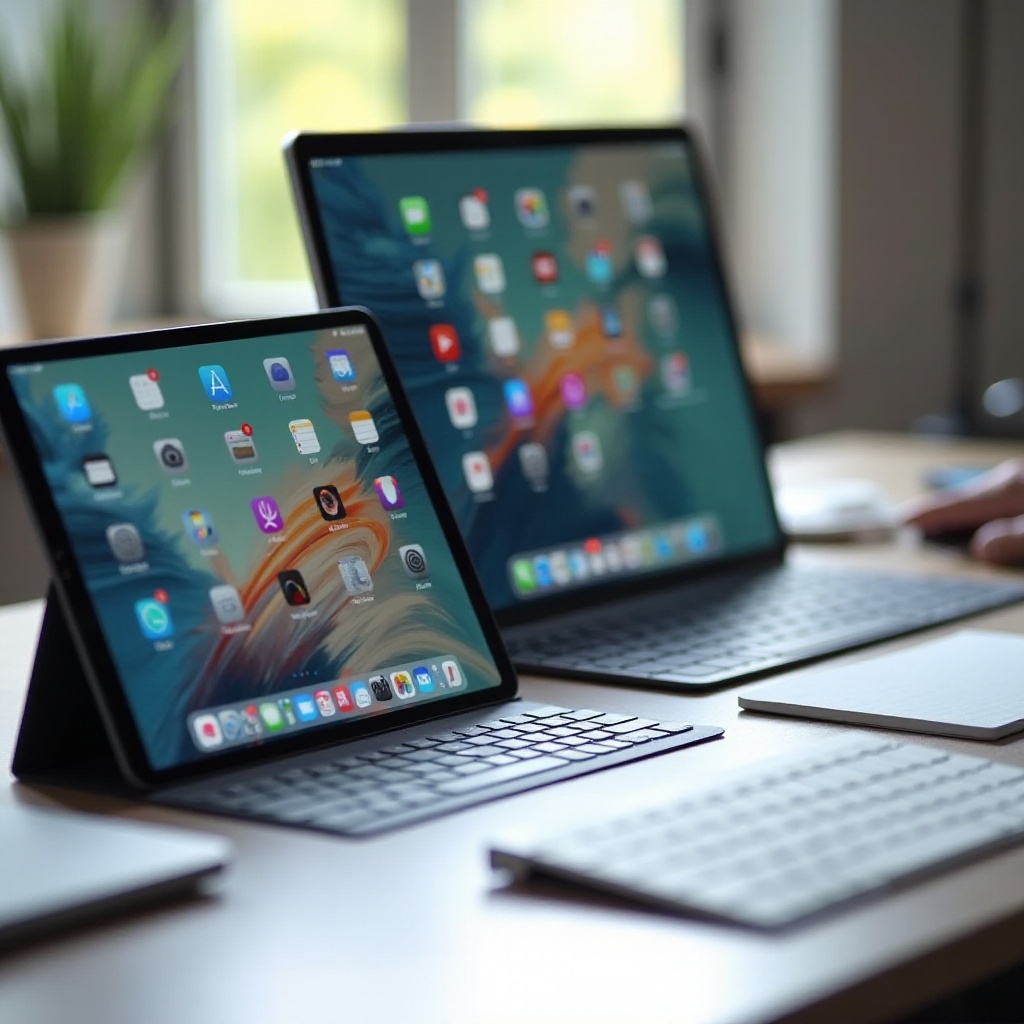
Accessories often matter more than a few extra benchmark points. Start with a keyboard and trackpad that feel good for long sessions. A sturdy stand lifts the screen and improves posture and camera angles in meetings. A USB‑C hub with pass‑through charging connects displays, Ethernet, and storage in one cable. A first‑party pen pays off if you annotate or design. Protect your gear with a case and screen protector. For calls, use a noise‑canceling headset and, if lighting is poor, add a small clip‑on light.
Keyboards, Trackpads, and Ergonomic Stands
Pick a keyboard with comfortable travel and a layout you can trust. Consider a desktop keyboard and mouse at your main desk and a slim cover keyboard for travel. Use a stand to raise the screen to eye level and reduce neck strain.
Stylus and Note‑Taking Essentials
Choose the first‑party pen for the best latency and tilt support. A matte screen film adds pen friction and cuts glare, which helps long handwriting or sketching sessions.
USB‑C Hubs, SSDs, and External Monitors
Select a hub with HDMI, USB‑A, card readers, and power delivery. Keep a compact, fast portable SSD for large assets. Test your display output and cables before an important meeting.
Protective Cases, Screen Protectors, and Power Banks
A rugged case prevents costly repairs. A tempered glass or film protector guards against scratches. A 10,000 to 20,000 mAh power bank keeps you working during long travel days.
Audio and Video: Headsets, Webcams, and Lighting
A good headset improves call clarity for you and your team. If your camera struggles in dark rooms, add a small light or use an external webcam when docked.
With the hardware sorted, a smart setup turns that power into daily speed. The next section covers essential optimization.
Setup and Optimization Tips for a Work‑Ready Tablet
A careful setup saves minutes every hour. Configure work accounts and focused modes so only key alerts break your flow. Organize your home screens and docks around hourly tasks. Use passwordless sign‑in with passkeys and enable biometric login. Connect cloud storage and set offline folders for travel. Create backup routines for local and cloud data. Install automation tools for text snippets, file actions, and scheduled focus modes. Tune audio and camera defaults for your headset and room lighting. Test your VPN, remote desktop, and screen‑sharing before client calls.
Work Profiles, Accounts, and Notifications
If your platform supports profiles, separate work from personal apps to reduce distraction. Filter notifications to allow only priority people and apps during deep‑work blocks.
Storage, Backups, and File Organization
Keep a clear folder structure across devices. Store active projects locally for speed and archive old work to cloud or an external SSD. Enable automatic backups to protect against loss.
Automation, Shortcuts, and Cross‑Device Sync
Create keyboard shortcuts for common commands. Use automations to rename files, move assets, and launch app sets. Sync notes, tasks, and calendars so you can switch devices without losing context.
Security Basics: Passkeys, VPN, and Remote Wipe
Turn on device encryption and enable find‑my features. Configure a trusted VPN for public networks. Confirm you can lock or wipe a lost device from your account dashboard.
With your device optimized, the final step is timing your purchase and choosing the right configuration to maximize value.
Buying Advice and Timing: Getting the Best Value
Stretch your budget by choosing the right tier and buying at the right time. If you keep devices for years, favor more RAM and storage now to avoid slowdowns later. Midrange storage tiers often hit the sweet spot; the smallest tiers can fill quickly with offline files and media. Decide whether you need 5G or if phone tethering is enough for rare outings. Certified refurbished models from reputable sellers offer big savings with minimal risk. Watch seasonal sales and bundles that include a keyboard or pen. Compare warranty terms, accidental damage coverage, and repair turnaround times, especially if you travel or present often.
Storage Tiers and RAM Recommendations
If you handle large decks or media, 256 GB is a safe starting point. For heavy multitasking and creative work, 8 to 16 GB of RAM keeps apps ready and reduces reloads.
Wi‑Fi vs Cellular (5G or eSIM) for Work
If you are on the road weekly or work in places without reliable Wi‑Fi, a cellular model saves hassle and time. Otherwise, hotspot from your phone and save the monthly fee.
New vs Refurbished vs Previous‑Gen
Refurbished devices with warranties deliver strong value. Previous‑generation flagships often outperform brand‑new budget tablets for work tasks.
Warranty, Repairability, and Support
Pick brands with strong service networks. Add accidental coverage if you move a lot. Fast, reliable repairs protect your time and reputation.
Conclusion
A well‑chosen tablet can replace a laptop for many people and makes a superb second device for the rest. Start by aligning platform and apps with your work. Then weigh performance, screen quality, battery life, and input tools. The iPad Pro suits most users who want speed, polish, and top‑tier pen support. Samsung Galaxy Tab S models excel for DeX and S Pen workflows and mesh well with Google services. Surface Pro leads when full Windows apps are non‑negotiable. Invest in a great keyboard, add a pen if you annotate or draw, and keep a compact hub at your desk. Finish the job with smart setup and security. Do this and your tablet becomes the best tablet for working in your world: fast, flexible, and reliable wherever you go.
Frequently Asked Questions
Can a tablet really replace a laptop for work?
Yes, for many users. If your workflow runs on web apps, office suites, chat, and video calls, a tablet with a good keyboard and hub can replace a laptop. If you depend on specialized desktop apps, choose a Windows tablet such as Surface Pro or use remote desktop to access a PC.
What specs should I prioritize for productivity?
Pick a fast processor, 8 GB or more of RAM, and at least 256 GB of storage if you work with media. Choose an 11 to 13‑inch bright display, Wi‑Fi 6E or Wi‑Fi 7, and a reliable keyboard and trackpad. If you draw or annotate, get the first‑party pen for the lowest latency.
Can I run multiple monitors and desktop apps on a tablet?
Windows tablets support multiple external monitors like a laptop and run full desktop apps. Samsung DeX drives external displays well with a desktop‑style interface. iPadOS supports extended displays with windowed apps. For true desktop software, pick Windows; for lighter workflows, iPadOS and Android work well with a quality USB‑C hub.