
Introduction
Choosing the best operating system for PC starts with your needs, not a brand. Your hardware, your apps, and your budget define the right pick. If you game hard, want the widest software support, and use lots of accessories, you likely lean toward Windows. If you value polish, strong creative tools, and tight integration, macOS shines on Apple hardware. If you prefer control, privacy, and flexibility, Linux rewards the effort. If you live in the browser and want speed and simplicity, ChromeOS makes life easy. This guide compares the four major options across performance, apps, gaming, security, cost, and support. You will also see persona based picks, setup tips, and when to mix systems. Start with quick recommendations, then review the key factors to make a confident choice.
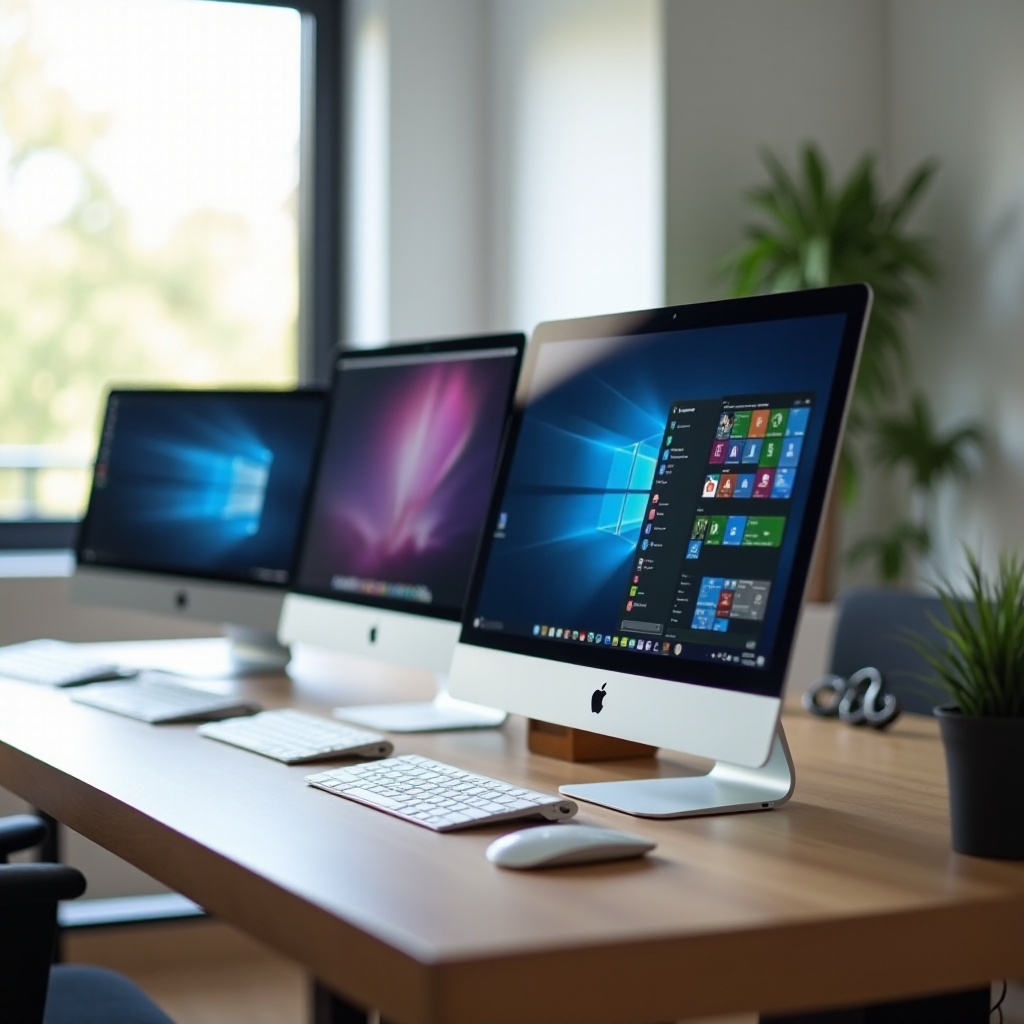
Quick Picks by Use Case
Quick picks offer a fast answer when time is short. Use them as a starting point, then validate your must have apps and hardware.
– Best overall for most users: Windows, for unmatched app and device support.
– Best for gaming: Windows, with top performance, drivers, launchers, and anti cheat coverage.
– Best for creators: macOS on Apple Silicon, for color accuracy, media engines, and stable pro suites.
– Best for developers: Linux such as Fedora or Ubuntu, or macOS for a Unix first workflow.
– Best for privacy: Linux with a hardened browser and minimal telemetry.
– Best for old or low spec PCs: ChromeOS Flex or a lightweight Linux distro such as Linux Mint Xfce.
– Best for schools and shared devices: ChromeOS, for secure, low maintenance management.
These snapshots save time. If two options appeal, the next section shows what to weigh before you commit and how to test the fit.
How to Choose the Right OS: Key Decision Factors
A smart choice begins with a checklist. Run through these factors before you install or buy.
1) Hardware compatibility: Confirm CPU, GPU, Wi Fi, printers, and specialty gear. Verify drivers exist and perform well. Check vendor support pages.
2) App ecosystem: List must have apps. Confirm native versions or solid alternatives. Note plugins and file formats that your work demands.
3) Performance: Match the OS to RAM and storage. Some desktops feel snappier on low end hardware. Watch background services and startup items.
4) Gaming: Confirm your library, anti cheat support, controllers, and VR. Test with your favorite titles.
5) Security and privacy: Decide how much control you want over telemetry, updates, and permissions. Look for clear settings and audit tools.
6) Ease of use: Evaluate the learning curve, UI, and accessibility tools. Consider how fast you can get help when stuck.
7) Cost: Count licenses, time to maintain, and potential hardware upgrades. Time is money when you manage several devices.
8) Support lifecycle: Prefer long term support and reliable updates. Track end of support dates to avoid risk.
With priorities set, let us examine each OS, starting with the default choice for many PCs.
Windows: Strengths, Weaknesses, and Who It Is For
Windows offers the broadest software catalog, first class device support, and the best gaming stack. You get native drivers from NVIDIA, AMD, and Intel, rich peripheral ecosystems, and wide compatibility with business tools. The Microsoft ecosystem includes Office, OneDrive, and Teams, plus WSL for Linux tooling. Performance is strong across CPU and GPU tiers, and modern security features harden the platform. Trade offs exist. Preinstalled bloat, telemetry, and occasional update friction can frustrate. System settings still split between panels. Even so, if you value frictionless app and hardware support, Windows delivers. It suits gamers, creators on Adobe suites, power users with varied accessories, and businesses with management needs. If you prefer a tightly integrated platform with premium hardware and creative strengths, consider macOS next.
macOS on Apple Hardware: Pros, Cons, and Ideal Users
macOS pairs polished design with reliable performance on Apple Silicon. The platform excels at color accurate displays, efficient media engines, and cohesive apps such as Final Cut Pro and Logic Pro. You gain strong privacy defaults, fast wake, long battery life, and smooth handoff with iPhone and iPad. The Unix base suits developers who prefer a stable terminal environment with Homebrew and quality shells. Trade offs are clear. macOS runs only on Apple hardware, and gaming remains limited despite progress. Some niche enterprise tools and certain games do not exist on macOS. Hardware costs more, though resale values and support timelines are strong. Choose macOS if you want premium build quality, creative tools, and unified services. If you want maximal control and free customization, Linux may fit you better. That takes us to the most flexible option.

Linux Desktop Distros: Ubuntu, Fedora, Pop_OS, Mint, and More
Linux gives you freedom, control, and a fast desktop with no license fees. Pick a distro that matches your style. Ubuntu offers stability, broad documentation, and LTS releases. Fedora Workstation ships fresh kernels and GNOME, ideal for developers and new hardware. Pop_OS targets creators and GPU users with tiling features and easy driver setup. Linux Mint focuses on familiarity and low resource use, great for older PCs. You can tune performance with lightweight desktops such as Xfce or LXQt.
Pros include strong security, powerful package managers, and deep customization. Your system can feel lean, private, and responsive. You also get container friendly workflows and first rate tooling for coding. Cons include a learning curve and occasional driver or app gaps. Some proprietary tools and creative plugins are missing or experimental. Gaming keeps improving through Proton and native ports, yet anti cheat support varies by title. If you value privacy, flexibility, and efficiency, Linux rewards the effort. If your needs are simpler and web centric, ChromeOS could be enough.
ChromeOS and ChromeOS Flex: Web First OS for Old and New PCs
ChromeOS emphasizes speed, security, and simplicity. It boots fast, updates silently, and protects with verified boot and sandboxing. Most work happens in the browser, which suits students, remote workers, and shared devices. You can also run Android apps and Linux containers for select desktop tools and dev workflows. ChromeOS Flex extends that model to many Intel and AMD PCs, breathing life into old hardware without license costs. The trade off is clear. Heavy creative suites, advanced games, and niche pro apps may not run natively. Offline support has improved, yet web first remains the core. If your workflow is email, docs, video calls, and web tools, the experience is smooth and easy to manage. If you need local power apps or high end games, choose Windows or Linux. Now let us match users to systems.
Recommendations by Persona: Students, Creators, Gamers, Developers, Businesses
Different roles have different needs. Use these focused picks to reduce guesswork.
– Students and everyday users: ChromeOS for simplicity and security. Windows if you need specific desktop apps or class software. Linux Mint for older hardware that needs a speed boost.
– Creators in photo, video, audio, 3D: macOS for color, codecs, and stable pro suites. Windows for Adobe, 3D tools, plugins, and capture gear. Linux for budget friendly pipelines, scripting, and developer creator hybrids.
– Gamers: Windows for top performance, anti cheat coverage, and accessory support. Linux if you accept some troubleshooting and want open tools and Proton. macOS only if your library supports it.
– Developers and IT: Linux such as Fedora or Ubuntu for containers, servers, and automation. macOS for Unix polish and mobile tooling. Windows with WSL if you need Microsoft stacks plus Linux CLI.
– Business and enterprise: Windows for device management and app coverage. ChromeOS for secure shared fleets and easy onboarding. macOS for executives and creative teams using Apple services.
If your PC struggles with modern apps, adjust expectations and pick a lighter OS. The next section focuses on older and low spec machines.
Best OS for Low Spec and Older PCs
For aging desktops and laptops, two strategies work best. First, install a lightweight Linux distro such as Linux Mint Xfce, Xubuntu, or MX Linux. You will get responsive performance, low memory use, and modern browsers. Second, use ChromeOS Flex to convert old PCs into fast, secure web devices. This choice reduces maintenance and avoids license costs. Keep expectations realistic. Choose lighter apps, add RAM or an SSD if possible, and disable startup bloat. If gaming matters, review platform differences before you decide. That is where the next section leads.
Gaming and Graphics: Performance, Anti Cheat, and VR Support
Windows leads in gaming performance, graphics drivers, and anti cheat compatibility. Game stores and launchers target Windows first. You also get best in class support for controllers, overlays, VR headsets, and mods. Linux gaming has improved rapidly with Steam Play via Proton, Vulkan, and solid GPU drivers. Many titles run well, but some anti cheat systems still block multiplayer. Expect occasional tinkering and per game fixes. macOS supports a growing set of ports and emulators and benefits from efficient Apple Silicon GPUs, yet major AAA libraries remain limited. Consider your GPU brand, monitor refresh rate, and peripherals. If your game library and anti cheat needs align with Linux, it can work and feel great. Otherwise, Windows remains the easy win for gaming. Security then becomes the next concern, because safe systems stay fast and reliable.
Security, Privacy, and Updates: What Matters Most
ChromeOS sets a high bar with verified boot, sandboxing, and seamless updates. Windows brings strong security features such as virtualization based protection and SmartScreen, yet frequent patches and telemetry require attention to balance control and convenience. macOS adds tight code signing, robust privacy prompts, and hardware backed protections on Apple Silicon. Linux offers transparent updates, minimal telemetry, and strong permissions. Your security posture depends on your distro, timely patching, and cautious repositories.
For privacy, all platforms benefit from good browser hygiene, password managers, and multi factor authentication. On Windows and macOS, audit startup apps and background services to reduce attack surface. On Linux, stick to trusted repos and keep Flatpaks or Snaps updated. If you need more than one OS, the next section shows how to combine them without losing safety and speed.
Dual Booting, Virtualization, and WSL: When to Mix Operating Systems
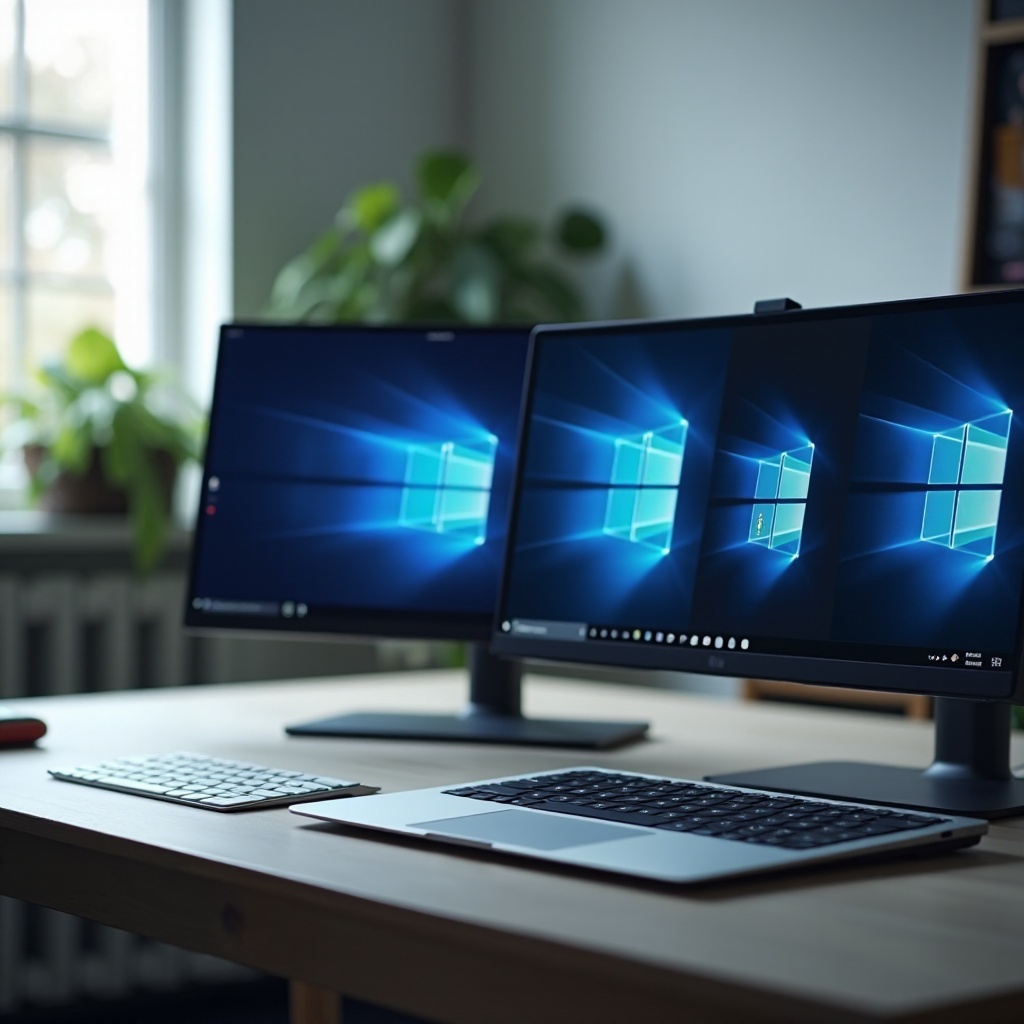
Mix systems when one OS cannot cover every need. Dual booting makes sense when you require native performance for games or GPU workloads on two platforms. Partition carefully, back up data, and use a boot manager. Virtual machines are best for convenience, testing, and legacy apps. Tools such as VMware, VirtualBox, Parallels on macOS, or KVM and QEMU let you spin up guest OSs quickly. GPU passthrough can enable near native performance on Linux hosts, but setup takes expertise. Windows Subsystem for Linux adds a fast Linux CLI on Windows, ideal for developers who need both PowerShell and Bash. macOS on Apple Silicon cannot boot Windows natively, so use virtualization for that scenario. Ready to move for real The next section gives you a checklist to switch without headaches.
Switching and Data Migration: Backups, File Systems, and App Alternatives
Back up first with a full disk image and a cloud copy of critical files. Verify restores to avoid surprises. Export browser data, mail, contacts, calendars, and chat histories. Use cross platform formats such as DOCX, PDF, MP4, PNG, and open file types where possible. For Windows to Linux, use NTFS read and write tools during migration and then adopt ext4 on the Linux side. For macOS, use Time Machine plus cloud sync for belt and suspenders protection. Map app alternatives ahead of time. Photoshop to Affinity Photo or GIMP. Outlook to Thunderbird. Final Cut to DaVinci Resolve. Reinstall fonts, plugins, and drivers last.
Build a test period. Run the new OS for a week alongside your current system. Capture blockers and workarounds. When costs matter, understand licenses and support timelines before you buy or switch. The next section explains those budgets and lifecycles.
Cost, Licensing, and Support Lifecycles
Windows often comes pre licensed on OEM PCs. Standalone licenses add cost. macOS is bundled with Apple hardware, which carries a higher upfront price but offers long support windows and strong resale value. Linux and ChromeOS Flex are free to install. Enterprise management for ChromeOS may add fees, but device upkeep tends to remain low. Consider time costs as well. Setup, updates, and troubleshooting all consume hours.
Match cadence to your tolerance. Long term support releases reduce churn on Ubuntu based distros. Fedora updates faster and suits new hardware but expects more frequent upgrades. Windows and macOS deliver regular feature updates with security patches in between. Track end of support dates to stay safe and compliant. Beyond cost and time, ensure every user can work efficiently. Accessibility and language support matter more than many people expect.
Accessibility and Multilingual Support Considerations
All four platforms ship with robust accessibility tools. Windows offers Narrator, Magnifier, voice control, and strong keyboard navigation. macOS provides VoiceOver, Zoom, and Voice Control with system wide consistency. Linux supports Orca, high contrast themes, and configurable shortcuts across desktops. ChromeOS supplies ChromeVox and simple, unified settings. Each OS adds extensive language packs, input methods, and right to left support. Test must have features before switching, then confirm that training and support resources match user needs. With that foundation, you can decide with confidence.
Final Recommendations Summary
Choose Windows if you want maximum app support, gaming, and device compatibility. Choose macOS if you value polish, pro media tools, and Apple ecosystem benefits. Choose Linux if you want privacy, control, and speed on a budget. Choose ChromeOS or ChromeOS Flex if you live in the browser or need to revive old PCs.
Try before you switch. Boot a live Linux USB. Use a Chromebook for a week. Test macOS in store. Validate your must have apps and devices. The right OS feels seamless in daily use, not just on paper. If you still cannot decide, the conclusion offers a simple path forward.
Conclusion
No single answer fits everyone. The best operating system for PC aligns with your apps, hardware, and comfort level. Windows excels for gaming and broad compatibility. macOS offers creative strengths and tight integration. Linux rewards control and privacy. ChromeOS delivers speed and simplicity. Start with your must have tasks, then confirm hardware and software support. Pilot the top choice for a week before you commit. If you still cannot decide, dual boot or virtualize to cover gaps. The right OS should help your work flow, not fight it.
Frequently Asked Questions
Can I run Windows apps on Linux or macOS without dual booting?
Yes, with trade offs. On Linux, try Wine or Bottles for simple apps, and Proton within Steam for many games. CrossOver adds paid polish. Virtual machines run Windows inside Linux or macOS for better compatibility. For heavy 3D or anti cheat titles, native Windows still works best. Cloud options such as Windows 365 or remote desktops can bridge gaps.
Is ChromeOS Flex good enough to replace Windows on my everyday PC?
It depends on your workflow. If you live in the browser, use Google Workspace or Microsoft 365 online, and do not need heavy desktop apps, ChromeOS Flex feels fast and simple. You can also use Android apps and Linux containers for some extra tools. If you rely on Adobe Creative Cloud, advanced DAWs, or many games, stick with Windows or consider Linux.
Which operating system is best for PC gaming right now?
Windows leads for performance, anti cheat support, and broad hardware compatibility. Most launchers, drivers, and accessories target Windows first. Linux ranks second for many titles thanks to Proton, Vulkan, and solid GPU drivers, though some multiplayer games still fail anti cheat checks. macOS supports a smaller library and suits only specific games.