Introduction
Your graphics card sits quiet, the fans do not move, and you start to worry. Are my GPU fans supposed to spin, or is something wrong? Modern GPUs often keep fans off at lower temperatures to cut noise and extend fan life. That fan-stop behavior can surprise anyone who upgraded from a card that spun all the time. Knowing when fans should run, what temperatures are safe, and how to spot a real fault will save you stress and keep your PC running well.
This guide explains normal behavior, the cooling hardware that makes it possible, and the control logic that decides when to spin. You will learn how to monitor temps, tune fan curves, and fix common problems. We will also cover special cases like laptops, small-form-factor builds, and hybrid coolers. First, get the quick answer, then dive into how GPU cooling works.
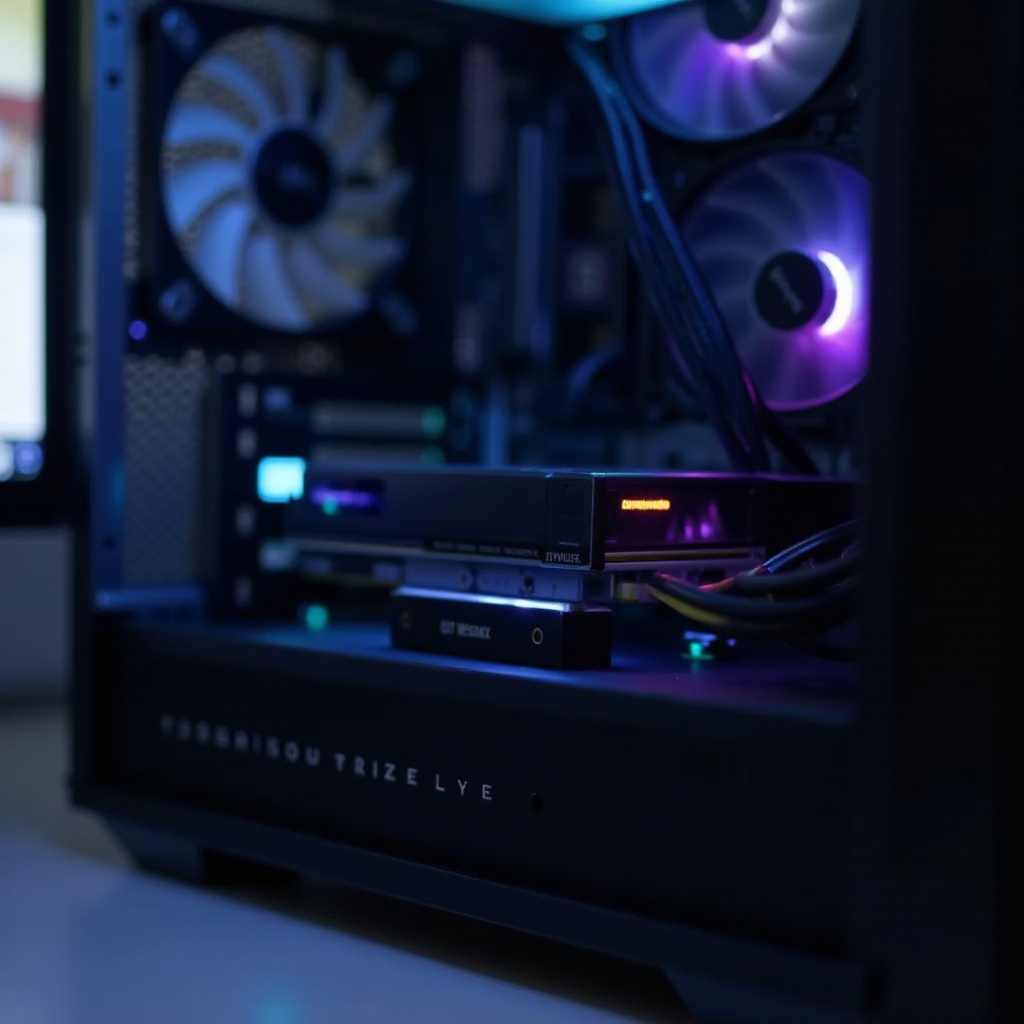
Quick Answer: When GPU Fans Should and Should not Spin
Idle on the desktop with zero-RPM enabled
At idle, many desktop GPUs keep fans off until the core reaches a set threshold, often around 50–60°C. A silent, stationary fan at idle is normal and intended. It reduces noise and wear.
Light tasks like browsing and streaming video
Light tasks add a few degrees. If temps stay under the threshold, fans remain off or pulse briefly. Expect short, gentle ramps, not sustained spinning. This is also normal.
Gaming, rendering, and stress testing under load
Under load, fans should spin and ramp with temperature. Games push steady speeds. Heavy renders or synthetic stress can drive higher RPMs to maintain safe temps.
Brief spin-ups at boot or during diagnostics
Some cards spin for a moment at boot or when software probes the fans. Short bursts are fine. Continuous maximum spin at idle is not normal and needs a check.
This snapshot sets expectations. Next, see how the cooler hardware and airflow design enable this smart fan behavior.
How Modern GPU Cooling Works
Heatsinks, heatpipes, and vapor chambers
The cooler moves heat from the GPU die into a fin stack. Heatpipes and vapor chambers spread heat across the fins, so fans can remove it efficiently. The more surface area, the better the dissipation.
Axial fans vs blower-style coolers
Most modern cards use axial fans that push air through the fins and back into the case. They move more air at lower noise. Blower coolers exhaust out the rear slot and can help in cramped or multi-GPU setups, but they are louder under load.
VRAM and VRM thermal management matters
Cooling does not stop at the GPU core. Thermal pads and base plates pull heat from memory chips and power stages. A balanced design keeps all components in spec, not just the core.
With the hardware in mind, we can explain why fan-stop exists and how firmware decides when to spin.
Zero-RPM and Fan-Stop Modes Explained
Temperature thresholds that trigger fan stop or start
Fan-stop logic watches multiple sensors. Fans remain off below a set temperature and spin up when the GPU crosses that point. Hysteresis prevents rapid on or off flicker as temperatures hover around the threshold.
Pros and cons of silent idle operation
Pros include silence, less dust pulled into the case, and longer fan life. Cons include slightly warmer idle temps and occasional brief spin-ups when you cross the threshold. For most users, the trade is worth it.
How to enable or disable fan-stop in software
Many partner utilities and AMD Adrenalin include toggles for Zero RPM. If you prefer always-on fans, adjust the curve to keep a low baseline RPM. Set a small minimum, such as 20 to 30 percent, at idle temps.
Once fan-stop is clear, it helps to map fan behavior across common PC scenarios to know what is normal.
Expected Fan Behavior by Scenario
Cold boot and POST behavior
You may see a short spin during boot as the card self-tests. After drivers load, fans often stop if temps are low. This is normal and not a cause for alarm.
Idle desktop and video playback patterns
On the desktop, fans usually rest. Video playback can raise temps a little. Short pulses may occur, then stop when the load drops. Smooth transitions show that control logic works.
Esports vs AAA gaming workloads
Esports titles often push less heat. Fans may run slower or cycle less. Demanding AAA games, high resolutions, and ray tracing raise temps and RPMs. Expect a steady, audible but stable fan speed.
Rendering, AI compute, and sustained loads
Long workloads saturate the cooler. Expect steady, higher fan speeds. If fans fail to ramp, temperatures rise fast and throttling starts. Watch temps during the first minutes of a heavy session.
High ambient temperatures and summer conditions
A hot room raises every reading. Fans spin sooner and faster. Seasonal tweaks to curves can stabilize noise and temperatures. Keep the case free of dust to avoid heat soak.
Knowing what to expect under each workload prepares you to judge whether your readings sit in a safe range.
Safe Temperature Ranges and What They Mean
GPU edge vs junction or hotspot temperatures
Edge is the average sensor on the die perimeter. Junction or hotspot is the hottest point in the die and runs higher. Seeing a 10–20°C delta under load is normal. Focus on trends, not single spikes.
VRAM temperatures and GDDR6 or GDDR6X considerations
GDDR6 typically stays comfortable under about 90–95°C in heavy loads. GDDR6X can run hotter by design. Aim to keep memory in the low 90s or better with good airflow and a clean case.
Thermal throttling indicators and limits
When you hit thermal limits, clocks drop and frame rates dip. Hotspot near 100–110°C or memory in the high 90s often triggers throttling. If you observe repeated dips, improve cooling or adjust the fan curve.
To manage these ranges, you need reliable telemetry and a simple way to view RPM against temperature.
Monitoring Tools: Temps, RPM, and Hotspot
NVIDIA and AMD control panels for telemetry
AMD Adrenalin shows temps, hotspot, and fan speed in overlays and logs. NVIDIA users can view temps in GeForce overlays or via vendor tuning tools bundled with their card. Enable overlays to watch behavior during real use.
Third-party tools like MSI Afterburner and HWiNFO
Afterburner controls fan curves on many cards and provides on-screen display. HWiNFO and GPU-Z expose detailed sensors, including VRAM or VRM temps on supported models. Use them to validate what the vendor tool reports.
Logging RPM and correlating with temperature
Enable logging. Play a game for 10–15 minutes. Confirm RPM rises with temperature and drops when the load ends. A flat RPM with rising temps is a red flag. That pattern suggests a control conflict or a failing fan.
With data in hand, you can tune behavior instead of guessing. The next step is shaping a fan curve that fits your goals.
Fan Curves and Control Options
Vendor utilities and global or per-game profiles
Board partners provide apps with preset profiles. Use a global curve for simplicity or set per-game profiles to manage noise spikes in specific titles. Keep notes on what works well.
Building a balanced custom fan curve
Start with a low baseline at idle, a gentle ramp through the mid range, and a firmer slope near your maximum target. For example:
– 30 percent at 40–50°C
– 45 percent at 60°C
– 60 percent at 70°C
– 75 percent at 80°C
Test and refine in small steps.
Hysteresis to prevent fan hunting
Add hysteresis or wider steps so fans do not bounce on and off. Slightly higher spin-up points with slower spin-down reduces pulsing. Smooth curves sound better and last longer.
Dual-BIOS switches: silent vs performance
Many cards include a BIOS switch. Silent ramps later for lower noise. Performance ramps earlier to keep temps lower. Pick the behavior you prefer and match it with your case airflow.
Even a good curve cannot hide a real fault. Learn the signs that demand action next.
Red Flags: Signs Your GPU Fans Need Attention
High temps with fans at 0 percent under load
If temps climb past your threshold and fans stay off, stop heavy tasks. Investigate control software, cables, or a failing fan hub. Running hot for long risks throttling or crashes.
One fan not spinning while others do
A single stuck fan can overheat nearby components. Check for cables or stickers blocking blades. Then test the fan at 100 percent in software. Replace the module if it fails to respond.
Rattling, grinding, or chirping noises
These sounds suggest bearing wear or debris. Power down and inspect. Avoid heavy loads until you resolve the noise. A failing bearing can seize or damage the shroud.
Constant ramping despite low temperatures
Fan hunting points to a bad curve, conflicting apps, or erratic sensors. Simplify the setup and retest to isolate the cause. Stable control is the goal.
When you spot a red flag, follow a clean, repeatable troubleshooting path before you replace hardware.
Step-by-Step Troubleshooting Checklist
Visual inspection and safe dust removal
1) Power down and unplug. 2) Remove the card carefully. 3) Blow dust from fins and fans with short bursts of compressed air. 4) Spin blades gently by hand to check for rubbing or wobble. 5) Reinstall and retest.
Reseat the GPU and check PCIe power cables
1) Reseat the card in the primary slot until it clicks. 2) Firmly connect all PCIe power cables. 3) Use separate cables for high-power cards. Loose cables can cause fan and sensor oddities.
Clean driver install and reset custom curves
1) Update or reinstall GPU drivers. 2) Reset or disable custom curves. 3) Test with stock settings to rule out misconfiguration. 4) Reapply custom curves after stability returns.
Disable third-party fan control conflicts
1) Close overlapping utilities. 2) Keep only one app managing fans. 3) Reboot and test behavior. Conflicts often freeze RPM or cause erratic ramps.
Test with a known-good PSU and different slot
1) Try another PCIe cable or rail. 2) If available, use a different PSU. 3) Test the card in another PCIe slot or system. Power and slot issues can mimic fan faults.
Inspect and, if skilled, repaste or repad
1) If you have experience, repaste the GPU and replace thermal pads. 2) Use correct pad thickness. 3) If unsure, skip this step to protect your warranty.
When to RMA vs replace a fan module
1) Under warranty, contact the vendor for RMA if a fan fails or bearings grind. 2) Out of warranty, replace the fan module or full shroud assembly. 3) Verify compatibility by model.
With the basics stable, consider how special hardware types change normal fan behavior and what you should watch.
Special Cases: Laptops, Small-Form-Factor, and AIO GPUs
Why laptop GPU fans often run at idle
Thin chassis and shared heat paths keep laptop fans spinning at low speed. Quiet modes may slow them, but full stop is less common. Expect different behavior than desktops.
SFF airflow constraints and mitigation
Small cases restrict intake and exhaust. Use high-quality case fans, clear cable paths, and fine-tune curves to prevent heat soak. A mesh front panel and clean filters help a lot.
Hybrid or AIO GPU coolers and pump or fan behavior
Hybrid GPUs rely on a pump plus radiator fans. Ensure the pump runs, mount the radiator with clear airflow, and sync fan curves to coolant or GPU temps. Do not throttle the pump with low voltage.
Multi-monitor and high-refresh rate effects
High refresh or multiple displays can raise idle clocks and heat. Enable adaptive sync, reduce idle refresh, or set per-app power profiles. You should see lower idle temps once clocks drop.
These cases show why context matters. Now, round out your setup with simple airflow and cleaning habits that pay off over months and years.
Airflow, Dust, and Maintenance Best Practices
Intake or exhaust balance and fan placement
Aim for balanced or slightly positive pressure. Use front and bottom for intake, top and rear for exhaust. Keep a clear front path and remove obstructions around the GPU intake zone.
Dust filters and cleaning cadence
Use filtered intakes to trap debris. Clean filters monthly and the GPU heatsink every few months. Less dust means cooler, quieter operation and fewer fan ramp events.
Positive vs negative pressure trade-offs
Positive pressure reduces dust but may raise internal temps slightly. Negative pressure can cool well but pulls in more dirt through gaps. Tune for your case and room environment.
Seasonal profiles for hot and cool months
Create two curves: summer with earlier ramp, winter with later ramp. Switch profiles as room temperatures change. This small tweak keeps noise consistent year-round.
With airflow sorted, you can wrap up the picture of normal vs abnormal fan behavior and what actions to take.
Conclusion
A stopped GPU fan at idle is often normal. Fan-stop features keep your system quiet and extend fan life as long as temperatures stay within safe ranges. Under load, fans should ramp smoothly and hold stable temperatures without throttling. Use telemetry to confirm behavior, then tune fan curves to match your goals, whether that is silence, balance, or performance. Watch for red flags, act fast when temperatures climb, and follow a structured troubleshooting path before replacing hardware. Keep your case clean and airflow balanced to prevent heat issues that no curve can fix. With these steps, you control noise and thermals, and you will know exactly when your GPU fans should spin, and when they should not.
Frequently Asked Questions
Do GPU fans need to spin at idle?
Not necessarily. Many desktop GPUs support zero-RPM at low temperatures. If idle temps sit below the fan-start threshold, fans can safely stay off. Confirm with your card software. If fans never spin under load, that is a problem to fix.
Is 80°C safe for my graphics card?
Yes, 80°C core under gaming load is common. Watch hotspot and memory temps as well. Hotspot around 95–105°C and VRAM in the 80s–90s can be typical in heavy load. If you see throttling or rising temps in a cool room, improve airflow, clean dust, or adjust your fan curve.
Why does only one of my GPU fans spin?
Some triple-fan cards run the center fan first at low loads, then bring in the others as temps rise. That can be normal. If a fan never spins even at 100% command, inspect for obstructions, test cables, try a clean driver and a single utility. Persistent failure may indicate a bad fan or hub; consider warranty service or a replacement module.