
Introduction
A Chromebook can act up without warning. Keys stop responding. The trackpad freezes. The screen ignores touch. Bluetooth cuts out. You try a restart, but the problem stays. When hardware misbehaves, a hard reset often clears it fast.
This guide shows how to perform a hard reset for Chromebook safely and when to choose other reset tools. You will learn what a hard reset does and what it does not do. You will get exact steps for clamshell laptops, detachables, and tablets. You will also see what to try next if a hard reset fails to help.
We keep the steps clear and short. You can follow along on any recent model. If you use a school or work device, we note what changes and what does not. With that context, let us define a hard reset and set it apart from other resets before you jump into the steps.

What Is a Hard Reset on a Chromebook?
A hard reset resets hardware controllers, not your files. It clears the embedded controller and power management logic. That helps when input devices, sensors, or radios go out of sync. Think of it as cutting and restoring power to the small controller that manages hardware, not wiping your storage.
How a hard reset differs from a simple restart
- A normal restart closes apps and reloads ChromeOS. The embedded controller and firmware stay as they are.
- A hard reset cuts and restores power to the embedded controller and some components. It forces the system to reinitialize hardware.
What the embedded controller manages
- The controller handles the keyboard, trackpad, battery, charging, and sleep.
- When it glitches, the OS may still run, but inputs fail. A hard reset reboots the controller so it can detect and talk to devices again.
What a hard reset does not do
- It does not erase Google Drive files or your account.
- It does not remove enterprise enrollment on managed devices.
- It does not reinstall ChromeOS or change user settings beyond low level power states.
Understanding this difference sets up a smart troubleshooting path. Next, see how a hard reset compares with Powerwash and Recovery so you choose the right tool.

Hard Reset vs Powerwash vs Recovery
You have three reset tools. Choose the lightest one that can solve the issue. Start with a hard reset for hardware hiccups. If that fails, move to software resets.
Hard reset purpose and data impact
- Purpose: Clear hardware and power states to fix peripherals and sleep or wake bugs.
- Data impact: No data loss. Your local Downloads and app data remain.
Powerwash, the factory reset
- Purpose: Return the device to an out of box software state. It erases all local data, accounts, and settings.
- Use when: User profiles feel corrupt, settings will not stick, or performance issues persist after updates and hard resets.
- How to start: From Settings, open Reset settings and choose Powerwash. Or from the sign in screen, press Ctrl plus Alt plus Shift plus R and follow the prompts.
Recovery reinstall for deeper issues
- Purpose: Reinstall ChromeOS when the system fails to boot or shows the ChromeOS is missing or damaged message.
- Use when: The device cannot start normally or crashes into recovery prompts repeatedly.
- How to start: Enter Recovery with Esc plus Refresh plus Power on most laptops. Use the Chromebook Recovery Utility on another computer to create a USB installer.
Decision order that avoids extra work
- Step 1: Hard reset to clear hardware states.
- Step 2: Powerwash if software issues remain after a hard reset.
- Step 3: Recovery reinstall if the OS is damaged or will not boot.
With the reset types set, the next step is to confirm when a hard reset fits your specific symptoms.
When You Should Use a Hard Reset
Use a hard reset to fix hardware behavior that software alone cannot touch. Aim it at symptoms that point to the embedded controller, radios, or power states.
Keyboard, trackpad, or touchscreen glitches
- Key presses fail or stick without visible physical damage.
- The trackpad moves but will not click, or clicks without input.
- The touchscreen stops responding after sleep or a lid close event.
Bluetooth, Wi Fi, and peripheral issues
- Bluetooth headphones will not reconnect after sleep.
- The Wi Fi radio toggles off and will not toggle on.
- USB devices or SD cards stop mounting without clear errors.
Sleep or wake, charging LEDs, and fan anomalies
- The device will not wake from sleep until you hold Power for a long press.
- The charging LED shows the wrong color or stays off even with a charger.
- Fans ramp up or stay on when idle on models that include fans.
When not to use a hard reset
- Apps crash, profiles show errors, or the device behaves like it has bad settings. Consider Powerwash.
- The OS will not boot. Prepare for Recovery.
- You see signs of liquid damage or a swollen battery. Stop and seek service.
If your case matches the symptoms above, prepare your workspace and device so the reset goes smoothly.
Before You Start: Safety and Prep
A few quick checks make a hard reset safe and effective. Take a minute to prepare the device.
Save work and charge to a safe level
- Save open documents and tabs since a hard reset cuts power briefly.
- If possible, connect a charger. Aim for at least 30 percent battery to avoid shutdowns.
Disconnect hubs and accessories
- Remove dongles, docks, hubs, SD cards, and USB drives.
- Unplug printers and HDMI cables so you have fewer variables.
Notes for school or work managed Chromebooks
- You can hard reset a managed device and management will remain.
- Do not Powerwash or Recover without approval from your IT admin.
- If you must Powerwash, plan to re enroll the device as instructed by IT.
You are now set to run the reset. Start with laptop style models and then see the tablet button combo.
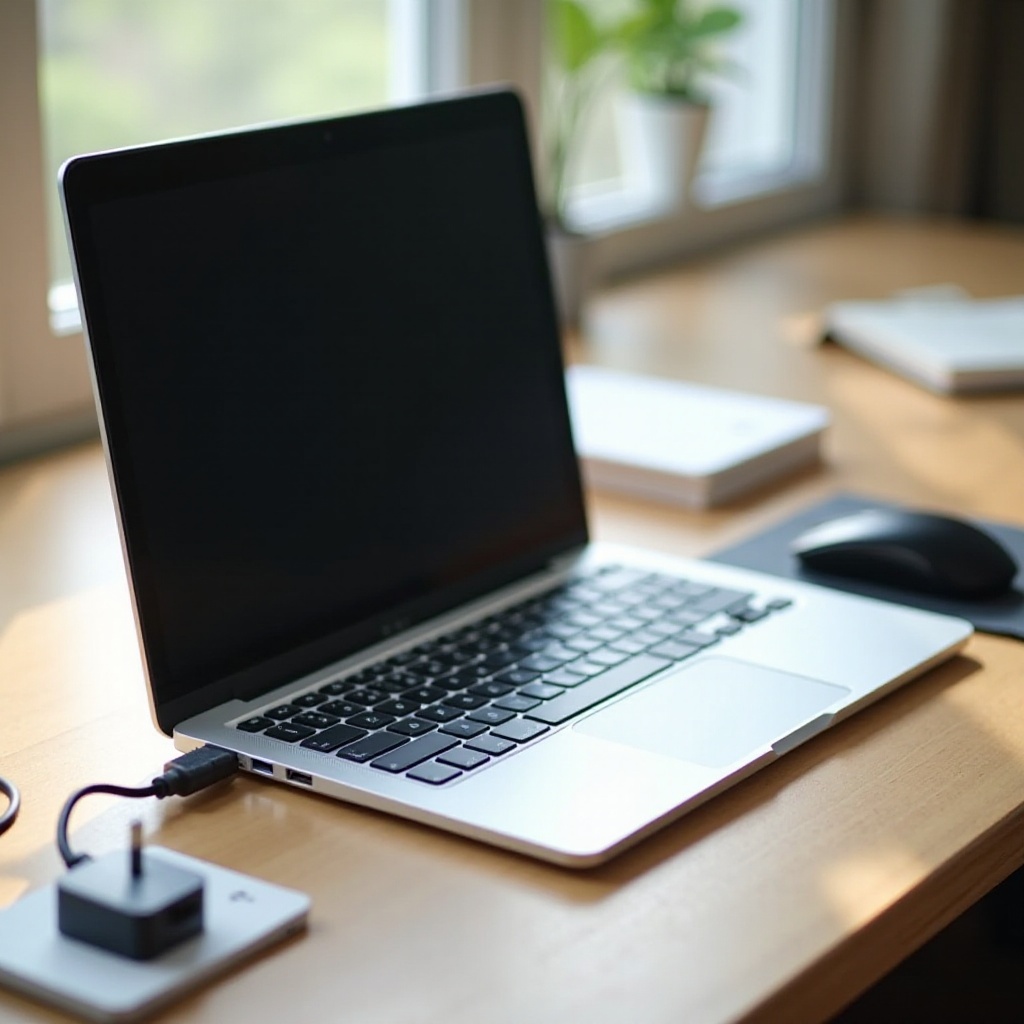
How to Hard Reset Most Clamshell Chromebooks
On most laptop style Chromebooks with a built in keyboard, the Refresh key method does the job. If the device is fully unresponsive, add a forced shutdown first.
Method 1, quick reset with Refresh plus Power
1) Keep the lid open and the device on.
2) Press and hold the Refresh key.
3) Tap the Power button once.
4) Release the Refresh key when the Chromebook restarts.
Method 2, longer hold with Refresh plus Power
1) Press and hold the Refresh key.
2) Press and hold the Power button at the same time for about 10 seconds.
3) Release both buttons. The device should shut down and restart. If it stays off, press Power once to turn it on.
Force shutdown first if the screen is frozen
- Hold the Power button for 6 to 10 seconds to force a shutdown.
- Wait 5 seconds.
- Run Method 1 or Method 2 above.
- Watch for the startup logo or an LED change to confirm the reset.
Tip: The Refresh key usually sits where F3 would be on a PC keyboard and shows a circular arrow icon.
Once you know the keyboard combo for laptops, tablets and detachables use a different button combo that you should try next.
How to Hard Reset Tablet and Detachable Chromebooks
Tablets and detachables do not always include a dedicated Refresh key. You use the hardware buttons instead. One standard works on most devices.
Button combo for most tablets, Power plus Volume Up
1) Disconnect removable keyboards or docks.
2) Press and hold Power and Volume Up together for about 10 seconds.
3) Release both buttons. If the device stays off, wait 5 seconds, then press Power to turn it on.
Docked keyboard caveats
- Some detachable keyboards pass through a Refresh signal. If the reset fails while docked, detach the keyboard and try again.
- For folio cases, ensure no keys are pressed during the reset.
Confirm with vibration or LED cues
- Many tablets vibrate slightly or blink a status LED during the reset.
- If there is no feedback, give the device 10 to 15 seconds, then press Power once to boot.
Tip: On some brands, Power plus Volume Down triggers a screenshot. Use Volume Up for the reset combo.
A few models offer additional hardware reset options. You can try them if the keyboard or buttons do not respond.
Model Quirks: Pin Hole Resets and Battery Cutoff
Most Chromebooks use the standard shortcuts, but some models include extra hardware reset options. Use these if the keyboard is dead or the device will not respond to key combos.
Find and use the pin hole reset
- Look along the bottom, sides, or under a small rubber foot for a tiny pin hole labeled Reset or with a battery icon.
- Gently press it with a straightened paperclip for 1 to 2 seconds while the device is off.
- Do not force or hold for too long. Avoid scraping near ports.
Battery disconnect switches and service modes
- Some models include a battery disconnect via software or a small bottom switch. It briefly cuts battery power to clear states.
- You may need to open the lid to access a small slider. Check the support page for your exact model.
Alternatives when there is no Refresh key
- Use the tablet combo, Power plus Volume Up, as described earlier.
- If the device supports a function row remap, check if the Refresh action is mapped to another key.
- As a last resort, perform a forced shutdown, wait 10 seconds, then boot into Recovery to test hardware response.
After you complete a hard reset, the system rebuilds hardware links. Knowing what to expect helps you judge whether the reset worked.
After the Reset: What to Expect
A hard reset should bring devices back to life with fresh hardware states. Give it a minute to settle and then test key functions.
Components reinitialize and drivers reload
- The embedded controller reboots and reconnects with the keyboard, trackpad, battery, radios, cameras, and sensors.
- ChromeOS reloads drivers and services tied to those components.
Reconnect Bluetooth, Wi Fi, and accessories
- Reconnect Bluetooth devices if they do not auto pair.
- Rejoin Wi Fi if the radio toggled during the reset.
- Plug in USB devices one by one to confirm detection.
Test camera, audio, and touch input
- Open the Camera app and record a short clip.
- Test the microphone in a short call or a voice recorder.
- Try tap, drag, and pinch gestures on touchscreens.
If these tests fail after a hard reset, move up the troubleshooting ladder with software resets and recovery.
If a Hard Reset Did Not Fix It: Next Steps
If symptoms persist, escalate your approach. Start with software cleanup. Then reinstall the OS if needed. If hardware issues remain, check power and consider service.
Powerwash from Settings or the sign in screen
- Back up local Downloads if you need anything stored there.
- In Settings, open Reset settings and choose Powerwash, then confirm and restart.
- Or at the sign in screen, press Ctrl plus Alt plus Shift plus R, then confirm Powerwash.
- Sign in with your Google Account to resync data from the cloud after the reset.
Enter Recovery mode and reinstall ChromeOS
- On laptops, press Esc plus Refresh plus Power to enter Recovery.
- On tablets, hold Power plus Volume Up, then choose the Recovery option if prompted.
- Use another computer to run the Chromebook Recovery Utility and create a USB stick.
- Insert the USB, follow on screen steps, reinstall, and boot.
Inspect hardware and ports before service
- Try a different USB C port and a known good cable.
- Inspect for bent pins, debris in ports, and cracks along the hinge.
- Look for signs of liquid damage or a swollen battery such as a gap in the chassis or a rising trackpad. Stop using the device if you see swelling.
Contact the manufacturer or IT support
- If the device is under warranty, open a ticket with the manufacturer.
- For managed devices, contact your IT help desk. They may require re enrollment after Powerwash or Recovery and can verify policies.
Power issues often sit behind odd behavior. Before you conclude there is a deep fault, rule out simple power and charging problems.
Power and Charging Checks Around Resets
Weak or unstable power can mimic hardware faults. Rule out power problems before you assume a deeper issue.
Use a capable charger and the right port
- Many Chromebooks need 45 watts or more for stable charging, especially during boot and updates.
- Switch to the opposite USB C port to bypass a bad jack or cable.
Inspect cable, charger, and port debris
- Try another cable and wall adapter known to work with other devices.
- Check both ports for dust or lint. Blow out debris with short bursts of compressed air.
- Avoid low quality hubs between the charger and the Chromebook during troubleshooting.
Battery health and safety checks
- If the device dies quickly or reports erratic battery levels, the pack may be worn.
- Swelling shows as a bulging case or a raised trackpad. Stop charging and seek service at once.
- Avoid deep discharges to zero repeatedly. Keep charge between 20 and 80 percent for longevity.
Once you confirm stable power and complete the right reset, you can wrap up with a brief summary and guidance on when to escalate.
Conclusion
A hard reset for Chromebook is a fast, safe first step when hardware misbehaves. It refreshes the embedded controller and clears stuck power states without erasing your files. If issues remain, move to Powerwash for software cleanup, then Recovery for a full OS reinstall. Always check power and cables along the way. With a clear sequence and quick tests, you can fix most issues at home and know when to contact support.
Frequently Asked Questions
Does a hard reset erase my downloads or Google Drive files?
No. A hard reset does not touch your storage or accounts. It only resets hardware controllers and power states. Your Google Drive data stays in the cloud. Your local Downloads folder remains intact. Powerwash is the reset that erases local files, and Recovery reinstalls the OS.
Will a hard reset remove school or enterprise management?
No. Management stays. A hard reset cannot remove enterprise enrollment and does not affect device policies or ownership. If you Powerwash a managed Chromebook, you still need to re enroll when you sign in, and policies will return. Follow your IT team guidance before running Powerwash or Recovery.
How often should I hard reset a Chromebook?
Use it as needed, not on a schedule. Run a hard reset when hardware acts odd such as unresponsive keys, a frozen trackpad, touch issues, or radios that will not reconnect. If you do it often, check for ChromeOS updates, review accessories, and consider Powerwash. If problems persist, contact support to check for hardware faults.