
Introduction
The App Store icon should not vanish from your iPhone, yet it sometimes seems to. When that happens you cannot download or update apps and that creates stress fast. Here is the key fact to keep in mind from the start: the App Store is a protected system app on modern iOS. On a normal device it does not uninstall. If you cannot see it, it is almost always hidden by a layout change, restricted by Screen Time, limited by a managed profile, or affected by a minor software glitch. You can fix each of those causes with clear steps.
This guide starts with the fastest ways to surface the App Store and then moves to settings that commonly hide it. You will check family controls, work or school profiles, and Focus modes. After that, you will apply simple system fixes like restart and update. If needed, you will reset settings or reinstall iOS without erasing your data. Follow along in order and you will bring the App Store icon back.
Understand the Problem: Missing vs Hidden vs Restricted
You need a quick diagnosis before you change anything. The App Store appears gone for three reasons.
- Hidden: The icon sits on a different Home Screen page, inside a folder, or only in the App Library.
- Restricted: Screen Time or a company profile disables installing apps, which hides the icon.
- Glitch: A layout error or a post update hiccup obscures icons until you reset or restart.
A simple test helps you pick a path. If Spotlight search or Siri can open the App Store, the app exists and is likely hidden. If search cannot find it and Siri fails, your device probably has restrictions or a management profile. With that context set, begin with fast checks that often solve the issue in seconds.
Quick Checks to Find the App Store Fast
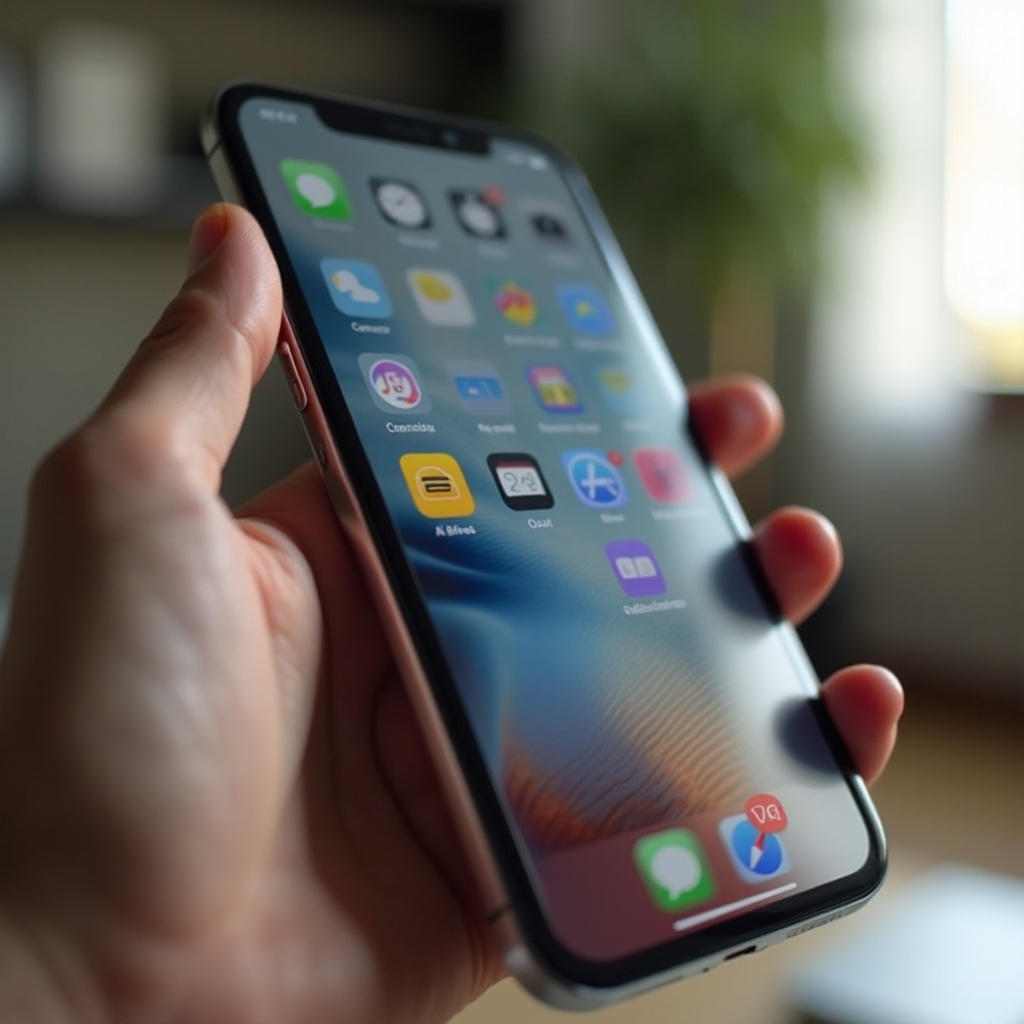
Start with the easy wins. These checks often surface a misplaced icon so you can drag it back to where you want it.
- Use Spotlight search
- On the Home Screen, swipe down in the middle of the display.
- Type App Store.
-
If you see it in results, tap to open. Press and hold the result and drag it to your Home Screen.
-
Check the App Library
- Swipe left until you reach the App Library.
- Tap the search field at the top and type App Store.
-
Press and hold the icon, then drag it onto a Home Screen.
-
Ask Siri
- Say Hey Siri, open App Store.
- If it opens, the app is present but hidden. Return to the Home Screen and organize it where you want.
If none of these reveal the icon, your pages or folders may hide it. The next section helps you unhide pages and clean up folders.
Check Hidden Home Screen Pages and Folders
Home Screen pages can be hidden, and folders can bury built in apps. If Spotlight finds the App Store but you do not see the icon anywhere, check both.
- Unhide pages
- Touch and hold an empty area of the Home Screen until apps jiggle.
- Tap the page dots above the dock to view all pages.
-
Ensure all pages you need are checked. Tap Done to confirm.
-
Inspect folders
- Open likely folders such as Utilities or Extras.
- Swipe through folder pages. If you find the App Store, press and drag it to the Home Screen or dock.
If the icon still does not appear where you expect, a layout reset can restore default app placement without touching your data. That is the fastest way to undo messy layouts.
Reset Your Home Screen Layout
A layout reset returns built in apps to their default spots. Your photos, messages, and downloaded apps remain intact.
- Go to Settings > General > Transfer or Reset iPhone > Reset > Reset Home Screen Layout.
- Confirm the reset. The App Store returns to its default position on the first Home Screen.
If the icon fails to return after a layout reset, restrictions are the next most common cause. Screen Time can hide the App Store when app installs are disallowed. Check that setting next.
Verify Screen Time Restrictions
Screen Time gives you powerful parental and personal controls. One of them, Installing Apps, hides the App Store when set to Do not allow. Re enable installs and the icon reappears.
Do this:
1. Open Settings > Screen Time.
2. Tap Content and Privacy Restrictions.
3. Tap iTunes and App Store Purchases.
4. Tap Installing Apps and choose Allow.
5. Also review Deleting Apps and In app Purchases as needed.
If you use a Screen Time passcode, enter it to make changes. If you forgot the passcode, use Apple account recovery for Screen Time. After you allow installing apps, the App Store should show up in the App Library or Home Screen. If it does not appear, Family Sharing may be enforcing restrictions from an organizer device.
Family Sharing and Parental Controls That Hide the App Store
Family Sharing lets an organizer apply rules to a child device. Those rules can limit app installs, hide certain app categories, or reduce access during downtime. Even when your local setting looks correct, organizer controls may override it.
Check these areas on the child device and, if needed, on the organizer device:
– Ask to Buy: Requests must be approved before downloads. This affects installs but should not hide the icon when installs are allowed. Confirm recent approvals.
– Downtime: During scheduled downtime, app access can be limited. Adjust in Screen Time > Downtime or request more time.
– Content Restrictions: Tight app age ratings can hide entire categories. Go to Screen Time > Content and Privacy > Content Restrictions > Apps and allow appropriate ages.
If the organizer controls the settings, ask them to permit installing apps or remove strict content limits. If family controls do not apply to your phone, check for management profiles that companies and schools use.
Check for MDM or Configuration Profiles
Work and school iPhones often use mobile device management, also called MDM. A profile can disable app installs and hide the App Store to enforce compliance. You cannot bypass these rules on your own.
Find out if your device is managed:
1. Go to Settings > General > VPN and Device Management.
2. If you see a profile from an organization, tap to view it.
3. Look for restrictions that disable the App Store or block app installs.
If a profile exists, contact your IT admin to request access or a temporary exception. Some organizations provide a separate company portal for approved apps. If you do not see profiles and still cannot find the icon, Focus modes may be hiding pages only when certain modes turn on.
Focus Modes and Custom Home Screens
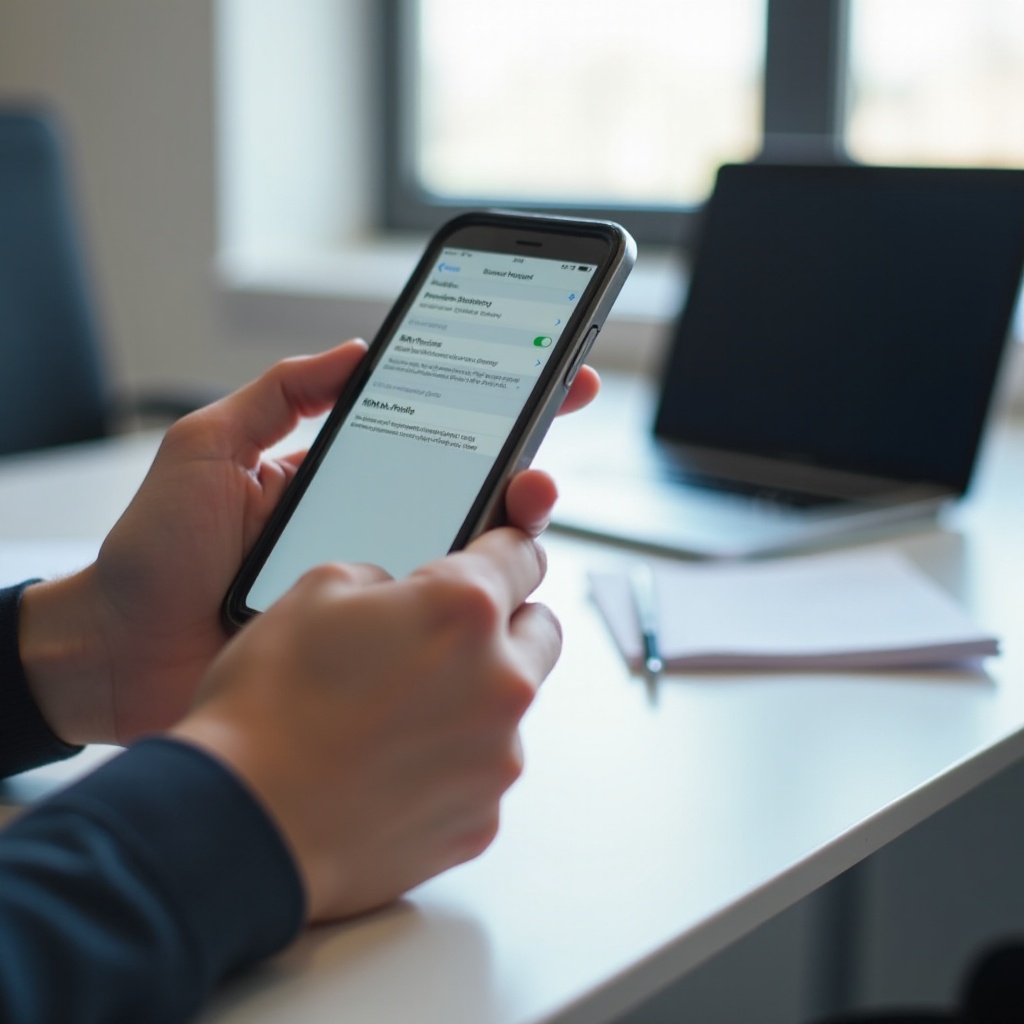
Focus modes can link to custom pages and hide your usual Home Screen. If the App Store sits on a page that is not included in a Focus mode, the icon disappears while that Focus is active.
Check Focus settings:
1. Go to Settings > Focus.
2. Select your active Focus, such as Do Not Disturb, Work, or Sleep.
3. Under Home Screen, disable Custom Pages or include the page that holds the App Store.
4. Turn off the Focus and confirm the icon appears.
Once you rule out Focus modes, move on to simple system fixes. A restart or update often clears display glitches and restores missing icons.
Restart, Force Restart, and Update iOS
Minor software issues can hide icons or freeze the Home Screen layout. You can clear those with a restart or force restart. Installing the latest iOS update also addresses known bugs.
- Restart your iPhone
- Hold the side button and a volume button until the power slider appears.
- Slide to power off. Wait 30 seconds.
-
Hold the side button to turn the phone back on.
-
Force restart most recent models
- Quickly press and release Volume Up.
- Quickly press and release Volume Down.
-
Press and hold the Side button until the Apple logo appears.
-
Update iOS
- Go to Settings > General > Software Update.
- Download and install available updates.
If the icon remains missing after a clean restart and an update, your Apple ID services or regional settings might cause unexpected behavior. Check your account and region next.
Sign Out and In of Apple ID and Review Region
The App Store icon should display even when you are not signed in. That said, account sessions can glitch after a move between countries or after restoring a backup. Refresh your session and confirm your region.
Try this:
1. Open Settings and tap your name at the top.
2. Tap Media and Purchases, then sign out.
3. Sign back in with the same Apple ID.
4. Go to Settings > General > Language and Region and confirm your country and region settings match your current location.
If the icon still does not appear, your system preferences may be corrupt. A settings reset clears deep preference issues without erasing your content.
Reset All Settings Without Erasing Data
Reset All Settings restores system preferences to defaults while keeping your photos, apps, and messages. This step often resolves hidden icon problems that survive restarts and layout resets.
- Go to Settings > General > Transfer or Reset iPhone > Reset > Reset All Settings.
- Enter your passcode and confirm.
- The phone restarts. Reconnect Wi Fi, pair Bluetooth accessories, and review privacy prompts.
If the App Store is still missing after this reset, reinstall iOS with recovery tools. Start with Update to preserve your data.
Advanced Recovery: Reinstall iOS with Finder or iTunes
Reinstalling iOS replaces system files and restores default app placements. You can do it without erasing data by choosing Update in recovery mode.
Steps:
1. Connect your iPhone to a Mac running Finder or a Windows PC with iTunes.
2. Put the device in recovery mode. On most recent models, use the force restart sequence but keep holding the side button until the recovery screen appears.
3. In Finder or iTunes, choose Update to reinstall iOS without erasing data.
4. If Update fails, back up first, then choose Restore as a last resort. Restore erases content and settings but will fix even stubborn system issues.
Before you attempt a full reinstall, it helps to understand a common myth. Users often think someone deleted the App Store. That is not how iOS works on stock devices.
Myths Debunked: Can You Delete the App Store?
On a standard iPhone you cannot delete the App Store. Apple treats it as a core system app. If it looks gone, something else is at play. Common causes include disallowing installs in Screen Time, an MDM profile that hides the icon, a hidden page from a Focus mode, or a corrupted layout.
Why this matters for your fix path:
– You do not need to hunt for a separate installer. The App Store is already on the device.
– You focus on reversing restrictions and visual changes, not reinstalling the app itself.
– Your efforts should target Screen Time, MDM, page visibility, and system stability.
With the myth settled, put a few habits in place so the App Store remains easy to find in the future.
Prevention Tips to Keep the App Store Visible
Prevent the problem before it returns. A few small choices make the App Store easy to find every day.
- Pin the icon to the dock so it appears on every page.
- Avoid burying the icon in deep folders with many pages.
- Review Screen Time settings after major iOS updates to confirm installs remain allowed.
- Audit Focus modes and disable custom pages you no longer use.
- If you manage a child device, leave Installing Apps allowed and rely on Ask to Buy for approvals.
- Keep iOS up to date to reduce display bugs that affect Home Screen icons.
These habits reduce the chance of surprises and make it simple to recover if the icon shifts again.
When to Escalate: Backups, Diagnostics, and Support
If the App Store is still missing after every step above, bring in help. Prepare details that speed up support and reduce back and forth.
- Back up to iCloud or to a computer in Finder or iTunes.
- Capture screenshots of Screen Time settings and the VPN and Device Management screen.
- Write down when the icon disappeared and what changed around that time, such as a software update, profile installation, or a new Focus rule.
- Contact Apple Support for a remote diagnostic. If your phone is managed, contact your IT admin first.
With a recent backup and clear notes, support teams can quickly identify whether a policy, a restriction, or a system fault caused the missing icon and apply the right fix.
Conclusion
When it looks like the App Store is gone, it is almost always hidden or restricted rather than deleted. Start with Spotlight, the App Library, and Siri to surface it fast. Unhide pages, check folders, and reset the Home Screen layout. Then verify Screen Time and Family Sharing rules. Review MDM profiles if your device belongs to work or school. Clear software issues with restart, update, and Reset All Settings. As a last step, reinstall iOS through recovery mode.
Follow the path in this guide in order. You will locate the App Store and restore normal downloads. Pin the icon to the dock, keep restrictions in check, and watch Focus pages. Those habits stop the app store gone from iphone scare from happening again.
Frequently Asked Questions
Why did the App Store go missing from my iPhone after an update?
Updates can shuffle the layout or reactivate Focus or Screen Time rules you forgot about. Search with Spotlight, reset the Home Screen layout, and review Screen Time. Then restart and install available iOS updates. If the icon is still missing, use Reset All Settings to clear bad preferences without erasing your data.
Can Screen Time completely hide the App Store icon on iPhone?
Yes. When Installing Apps is set to Do not allow, iOS hides the App Store icon. Fix it by going to Settings > Screen Time > Content and Privacy Restrictions > iTunes and App Store Purchases > Installing Apps, then choose Allow. If Family Sharing controls apply, the organizer may need to change this on their device.
What should I do if my work or school iPhone does not show the App Store?
Check Settings > General > VPN and Device Management for an MDM profile. If one exists, your organization likely hid the App Store. Contact your IT admin for access or use the company app portal. Do not remove the profile without permission. If you do not see a profile, follow the steps in this guide to restore the icon.