
Introduction
The allure of using a TV as a computer monitor for gaming lies in the dramatic enhancement it can bring to your gaming experience. With expansive screens and vibrant displays, modern TVs offer a cinematic boost to gameplay that few monitors can match. Yet, to truly harness the potential of a TV for this purpose, a thorough grasp of the necessary setup and possible challenges is essential. This guide explores all you need to know to make the most of your TV gaming setup.
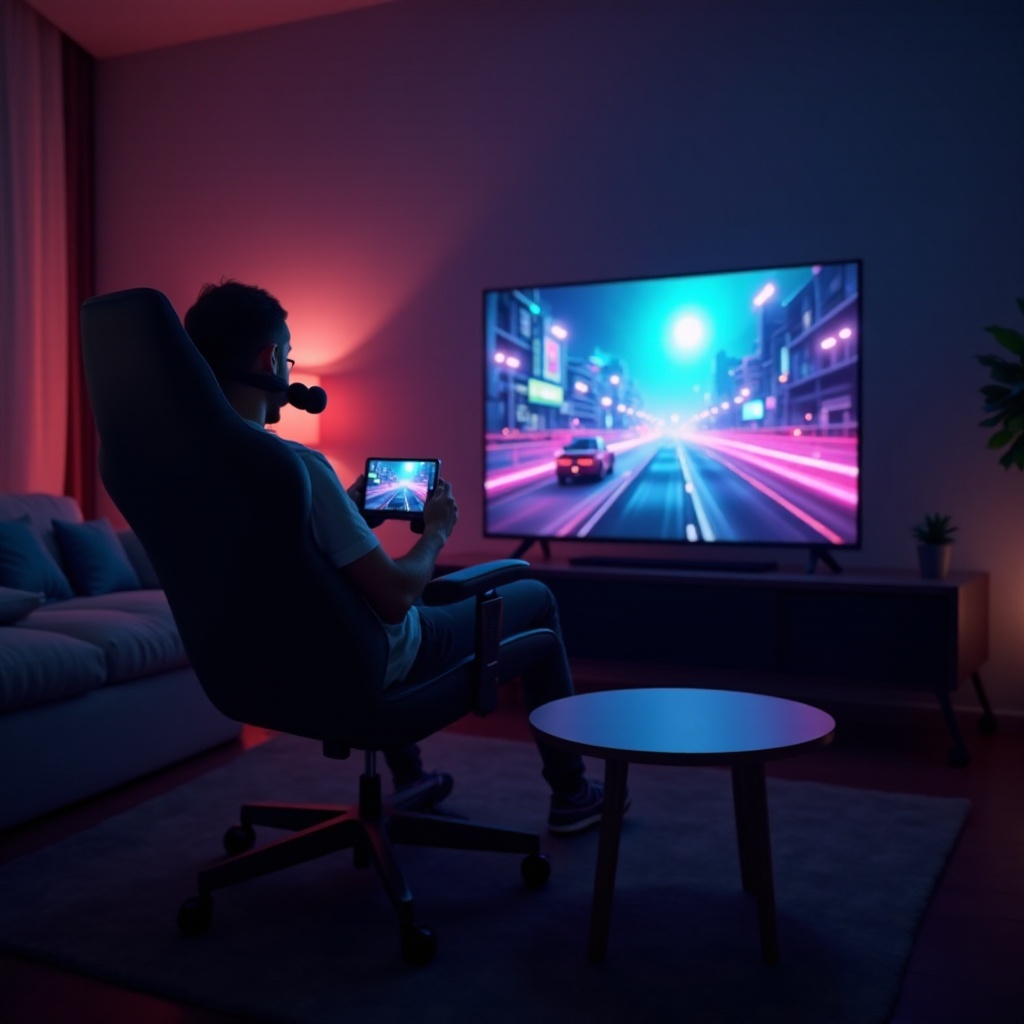
Understanding TV vs. Monitor for Gaming
As you ponder over using a TV instead of a traditional monitor, it’s crucial to understand the fundamental differences.
Key Differences Between TVs and Monitors
TVs generally offer larger screens, delivering an immersive viewing experience that enhances gaming sessions. However, they typically exhibit higher input lag and lower refresh rates than monitors—factors crucial for gaming smoothness and responsiveness.
Benefits of Using a TV as a Monitor
The most significant advantage is the immersive screen size, which magnifies the details and intensifies the gaming environment. Many TVs also support HDR (High Dynamic Range), which enriches the visual appeal by enhancing color depth and contrast.
Potential Challenges and Considerations
Alongside these benefits come certain challenges. Input lag can be a concern, along with finding the appropriate resolutions and ensuring the TV has a game mode to optimize performance. Careful evaluation of these aspects will ensure an informed decision.
Selecting the Right TV for Gaming
Choosing the perfect TV is a pivotal step that involves assessing various features tailored to maximize gaming pleasures.
Essential Features for a Gaming TV
- Screen Size: Larger screens create a more immersive experience; balance this with your room size for best results.
- Resolution: A 4K resolution is ideal for clarity and detail in contemporary games.
- HDR Support: Elevates the display’s vibrancy with superior color and contrast.
How to Evaluate Refresh Rates and Input Lag
- Refresh Rate: Opt for at least a 60Hz refresh rate, but 120Hz is preferable for smooth motion.
- Input Lag: Look for TVs with low input lag (under 20ms) to maintain responsive gameplay.
Importance of Screen Size and Resolution
While larger screens enhance visual immersion, they must coincide with suitable resolutions. For instance, a 55-inch TV with 4K resolution provides stunning clarity and detail, perfect for intricate and dynamic gaming environments.
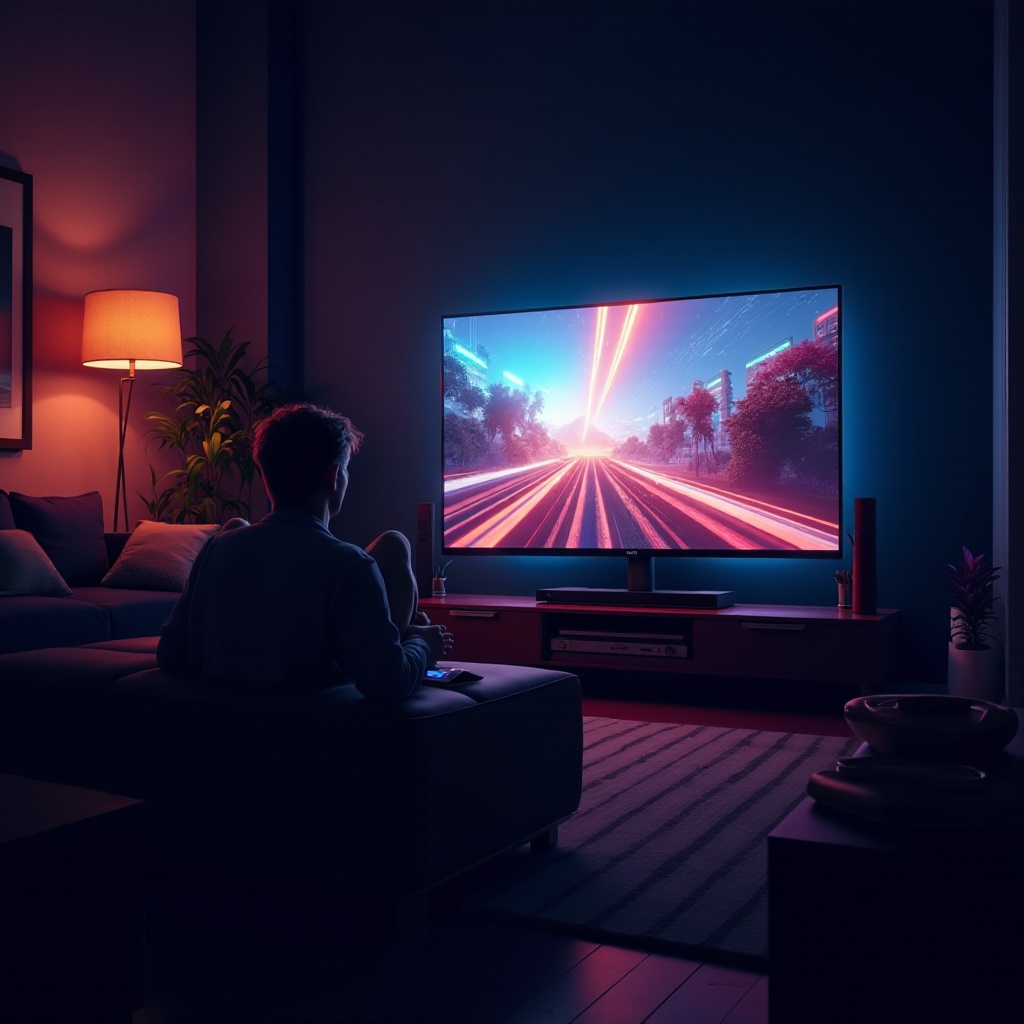
Setting Up Your TV for Gaming
Once the TV is chosen, setting it up effectively is crucial for optimizing gameplay.
Connecting Your Gaming System to the TV
- Cable Connection: Utilize high-quality HDMI cables to link your gaming console or PC with the TV. Ensure compatibility with HDMI 2.1 for advanced gaming functions.
- Cable Management: Organize cables to avoid clutter, ensuring easy access and better airflow.
Optimizing TV Settings for Gaming Performance
- Enable Game Mode: This setting minimizes input lag, tailoring picture settings for gaming.
- Calibrate the Display: Match your TV’s brightness, contrast, and color settings to your environment to lessen eye strain.
- Check Audio Settings: For TV speakers, tweak the sound settings or consider a soundbar for enhanced audio quality.
Sound and Audio Considerations
- Employ External Audio Solutions: Use soundbars or external speakers for immersive sound.
- Adjust Settings for Clarity: Fine-tune settings to ensure clear dialogues and crisp sound effects, using equalizer settings tailored for gaming clarity.
Troubleshooting Common Gaming Issues on TV
Even with optimal setup, technical hiccups may arise. Being ready to resolve them swiftly can sustain gaming enjoyment.
Addressing Input Lag and Response Times
- Activate Game Mode: This can substantially reduce input lag.
- Check Cable Quality: Ensure HDMI cables are in prime condition, supporting the required bandwidth for your desired gaming experiences.
Enhancing Image Quality
- Utilize Dynamic Contrast Options: These settings enhance image clarity and detail.
- Regular Updates: Keep your TV’s firmware up to date to benefit from the latest enhancements and fixes.
Dealing with Connectivity Problems
- Stable Internet Connection: Essential for seamless online gaming, ensure your connection is robust.
- Router Positioning: For wireless connections, place your router near the TV or opt for a direct connection to curb lag issues.
Conclusion
Selecting and using a TV as a monitor for gaming doesn’t just improve your setup; it profoundly enriches the gaming experience itself. By understanding the differences, making informed choices about the right TV, and setting it up correctly, you can greatly heighten your gaming experience.
This guide has provided a comprehensive path for you to unlock vibrant, detailed, and thrilling gameplay. Engage with these insights, and take your gaming adventures to new heights.
Frequently Asked Questions
Is it better to play games on a TV or a monitor?
This depends on your preferred experience. Monitors offer faster response times and higher refresh rates ideal for competitive gaming. TVs provide larger screens and immersive visuals, suited for story-driven games.
How can I reduce input lag when gaming on a TV?
Activate the TV’s game mode, use high-quality HDMI cables, and select a TV with low input lag specifications. Regular updates of the TV’s firmware can also enhance performance.
Can I use any TV as a gaming monitor?
While any TV can be used as a gaming monitor, not all will offer optimal performance. Choose a TV with low input lag, high refresh rate, and features like HDR for a superior gaming experience.