
Introduction
Encountering an issue where your iPhone does not appear on iTunes can disrupt your digital routine. Whether syncing files, transferring music, or performing updates, a seamless connection is vital. Understanding the potential causes behind this issue will help in addressing it effectively. This guide offers a comprehensive step-by-step solution to resolve the problem.
Common Reasons for iPhone Not Showing on iTunes
Several factors can lead to your iPhone not being detected by iTunes. Identifying these root causes will guide you in effectively troubleshooting.
- USB Cable or Port Issues: Issues with cables or ports can prevent a stable connection.
- Software Update Requirements: Outdated versions of iTunes or iOS may cause compatibility issues.
- iTunes Installation Problems: A faulty installation can hinder device recognition.
Recognizing these causes is the first step. Addressing these factors can often lead to a speedy resolution. If not, further troubleshooting is required.
Quick Preliminary Checks
Before delving into complex troubleshooting, conduct these initial checks that might resolve the issue almost immediately:
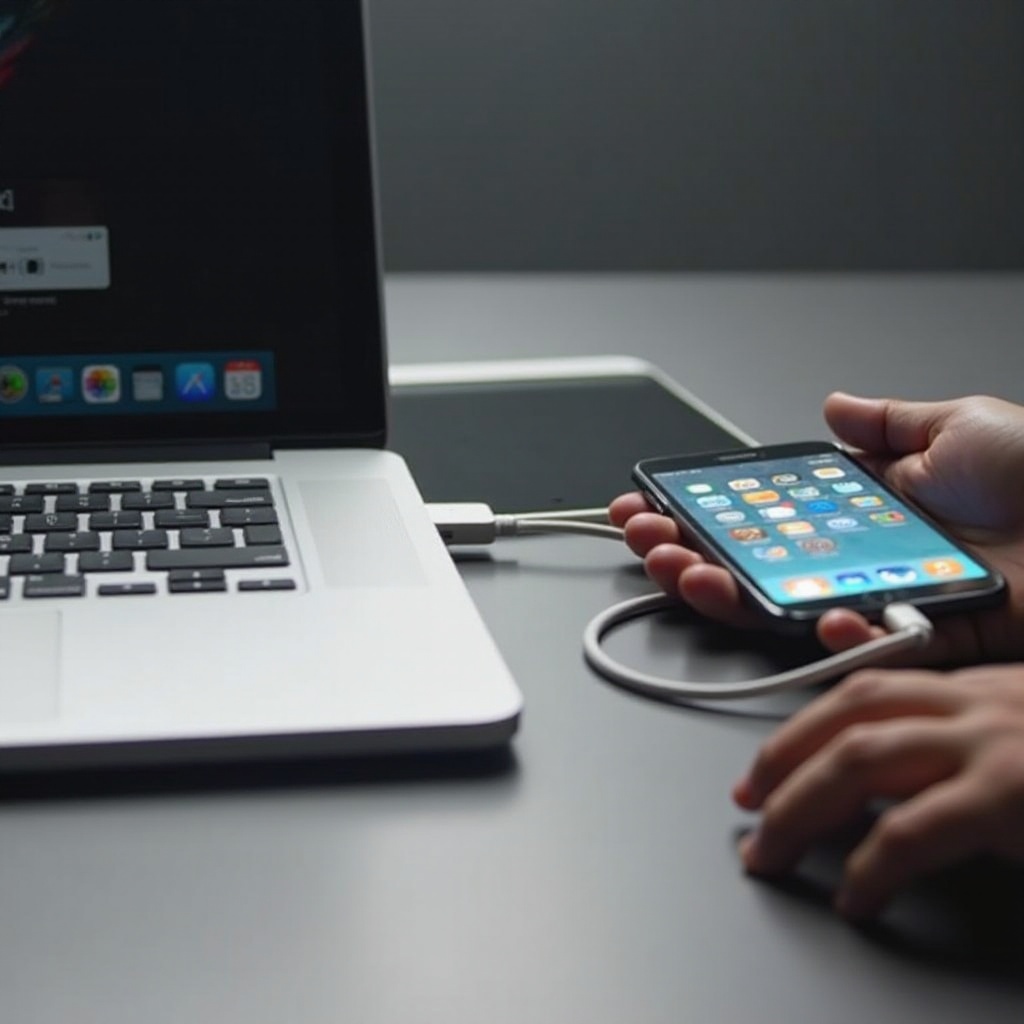
- Inspect Your USB Cable and Connection: Use an Apple-certified USB cable and try different ports.
- Restart Your Devices: A simple restart of your iPhone and computer can fix temporary glitches.
- Check for Available Updates: Make sure your iPhone’s iOS and iTunes software are updated.
These checks might quickly solve the issue. If not, it’s time to examine the iTunes setup on your computer.
Troubleshooting iTunes on Your Computer
If initial checks don’t work, the problem might reside with your computer’s iTunes setup. Ensuring iTunes is properly installed and configured is crucial.
- Update or Reinstall iTunes: Verify you have the latest version. Otherwise, update or reinstall to resolve potential errors.
- Adjust iTunes Settings: Check your preferences to ensure device syncing is enabled.
- Firewall and Security Software Configurations: Disable temporarily or adjust settings to allow iTunes through.
Addressing these iTunes-related issues can solve many connectivity problems. Moving forward, it’s essential to assess potential issues with the iPhone itself.
Solving iPhone-Specific Issues
Sometimes, the issue lies specifically with the iPhone. Let’s ensure settings or software on the device aren’t causing the problem.
- Reset Trust Settings and Connections: Verify your iPhone ‘Trust This Computer’ settings after each connection.
- Update iOS Software: Ensure your iPhone runs the latest iOS version.
- Use Recovery Mode for Troubleshooting: If issues persist, recovery mode can reset and address software problems.
These steps should address most device-specific problems. If the issue remains unresolved, consider advanced troubleshooting options.
Advanced Troubleshooting Solutions
Persistent issues may require an in-depth approach. Advanced troubleshooting might highlight overlooked details.
- Try a Different Computer or Cable: Testing on another computer or using different cables can identify hardware-related problems.
- Check for Hardware Issues on iPhone: Examine the device for physical damage or malfunction and seek professional repair if needed.
Through these advanced strategies, uncommon or persistent connectivity issues can be addressed. Hopefully, your iPhone will now connect without further problems.
Conclusion
By methodically working through these solutions, you’re equipped to tackle iPhone not showing on iTunes effectively. These strategies cover from simple checks to advanced troubleshooting, enhancing your ability to maintain optimal device connectivity. If issues persist, seeking expert support may be necessary to secure an effective resolution.
Frequently Asked Questions
Why is my iPhone not showing in iTunes after updating to the latest iOS?
New iOS updates can sometimes introduce bugs. Ensure iTunes is up-to-date to avoid compatibility issues.
Can antivirus software affect iTunes connectivity?
Yes, antivirus settings can block iTunes. Check your settings and ensure iTunes is not blocked by your firewall.
What should I do if my iPhone still doesn’t show on iTunes after trying all these steps?
If the issue persists, consult Apple Support or visit an Apple Store for professional diagnosis and repair.