
Introduction
Restore points are crucial for maintaining the health and stability of your Windows 10 system. They serve as recovery checkpoints, allowing you to revert your system to a previous state if software issues arise. This guide will walk you through the process of creating, managing, and using restore points, ensuring your computer remains safe and secure.

Understanding Restore Points
Before you start creating restore points, it’s important to understand their function. Restore points capture the state of your system files and registry settings at a particular time. This snapshot allows you to revert back to it if something goes wrong with your system settings or software. In Windows 10, utilizing restore points is an effective way to safeguard against malfunctioning updates or software changes.
Preparing to Create a Restore Point
Preparation is key to effectively creating and managing restore points. Here’s what you need to do:
- Ensure Administrative Rights: Ascertain that you have administrative privileges on your computer.
- Check Available Disk Space: Verify that your system has enough disk space to accommodate new restore points, as they require storage.
With these preparations in place, you set the stage for a smooth process of creating restore points, which can help shield your system from unexpected issues.
Step-by-Step Guide to Creating a Restore Point
Follow these steps to create a restore point in Windows 10 with ease:
-
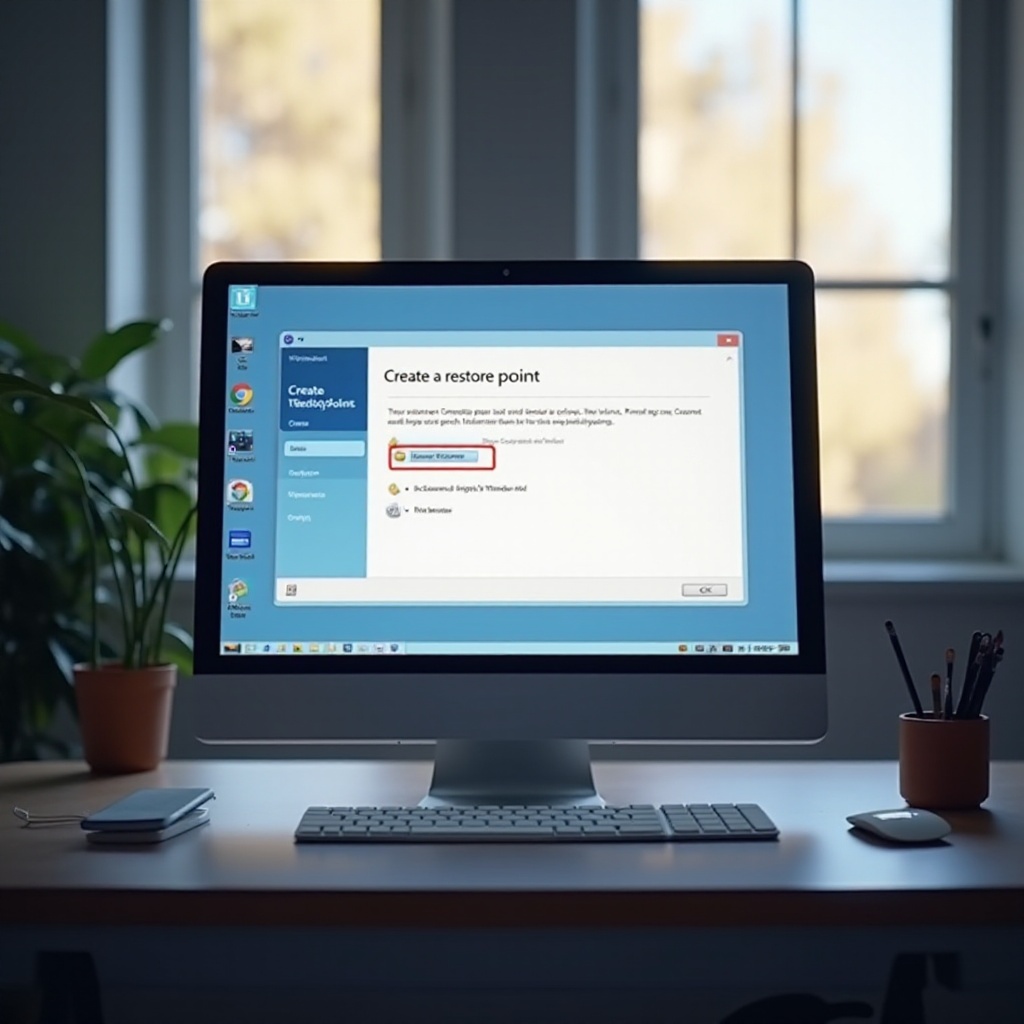
Access System Properties: Right-click on the Start button and choose ‘System’ from the menu, then click on ‘System protection’ in the left pane.
-
Enable System Protection: Make sure protection is turned on for your main drive (usually C:) under the ‘System Protection’ tab.
-
Create and Name the Restore Point: Click ‘Create’, then provide a meaningful name for your restore point to recognize its purpose later. Hit ‘Create’ again to finalize.
This procedure ensures that you can easily fall back on a stable configuration whenever necessary. Once you’ve created restore points, proper management is crucial to maintain system performance.
Managing Restore Points
Efficient management of restore points not only saves space but also retains your system’s proficiency. Here’s how to manage them:
- Listing Restore Points: Access the ‘System Restore’ utility to view all available restore points.
- Deleting Old Restore Points: Through the ‘Configure’ option in System Protection settings, you can delete outdated or unnecessary restore points to free up space.
By managing these points effectively, you can ensure that your system is always prepared for recovery without consuming excessive disk space. Being prepared with managed restore points makes the next steps easy, especially when system recovery is necessary.
Restoring Your System to a Previous State
If needed, you can restore your system to a previous state using the steps below:
-
Open System Restore Utility: Access this by going into ‘System Properties’ and selecting ‘System Restore’.
-
Select Restore Point: Choose one from the list, follow the prompts to confirm your selection, and let your computer restart to restore your system.
This process allows you to recover quickly from any mishaps, preserving the setup you are most comfortable with. In rare cases where things don’t go as planned, knowing how to troubleshoot effectively is essential.
Troubleshooting Common Issues
Occasionally, you might face problems during the restore process. Here’s how to address them:
-
Fixing Common Errors: When error messages appear, they usually provide clues. Consider searching Microsoft’s support or community forums for solutions specific to your error codes.
-
Troubleshooting Failed Restores: Ensure system protection is enabled and there’s enough space for restore operations.
By following these troubleshooting tips, you can ensure a smooth recovery process, and minimize downtime.
Conclusion
Creating, managing, and restoring points in Windows 10 is a straightforward yet vital part of system maintenance. Regularly setting restore points before major changes assures system reliability and safety. With the methods described, you are well-equipped to handle any software-related setbacks, keeping your computer running at optimal performance.
Frequently Asked Questions
How Often Should I Create a Restore Point?
Create a restore point before any major system changes or at least once a month to ensure coverage.
Will Creating a Restore Point Affect My Files?
No, it will not affect personal files; it only captures system files and settings.
What Happens if I Run Out of Space for Restore Points?
Windows manages space by deleting the oldest restore points first. You can also free up space manually through settings.